How to keep a break board running in OBS.
If your break board goes blank or freezes in OBS, keep the cards on camera, then open the browser source’s Properties and press Refresh cache of current page. If OBS itself crashed, reopen it and choose Run in Normal Mode (older versions: Run Normally), not Safe Mode, which turns off the WebSocket that Whatnot’s Show Tools uses. Before selling the next spot, check the board against Whatnot’s Break Manager.
By Michael at BreakerStudio · Updated
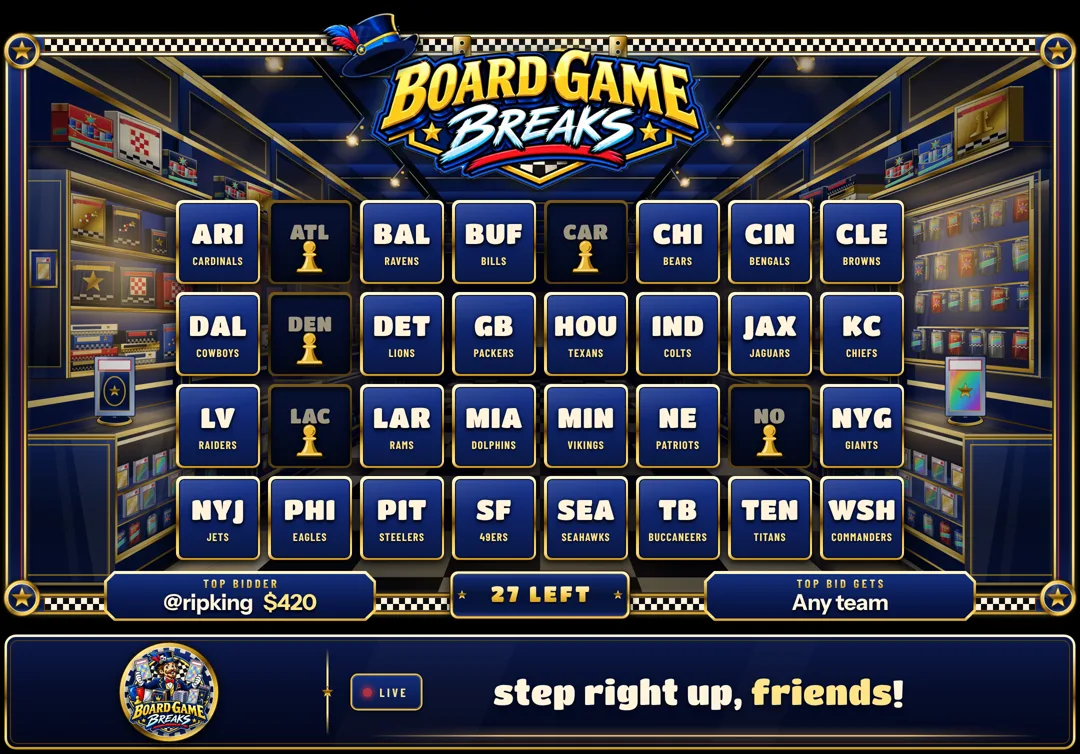
What to do when your break board stops mid-break
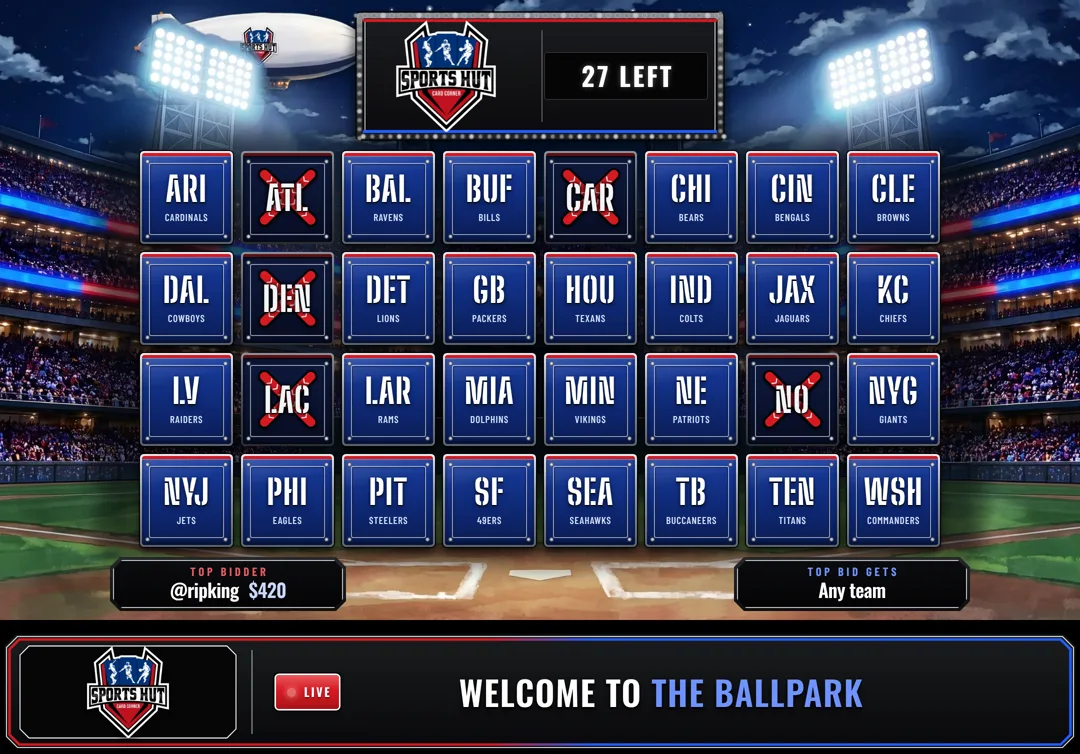
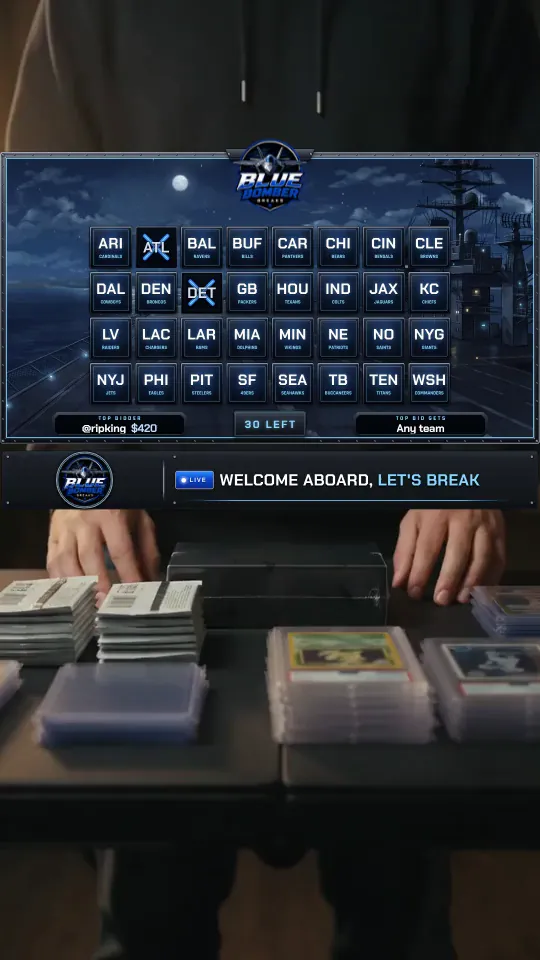
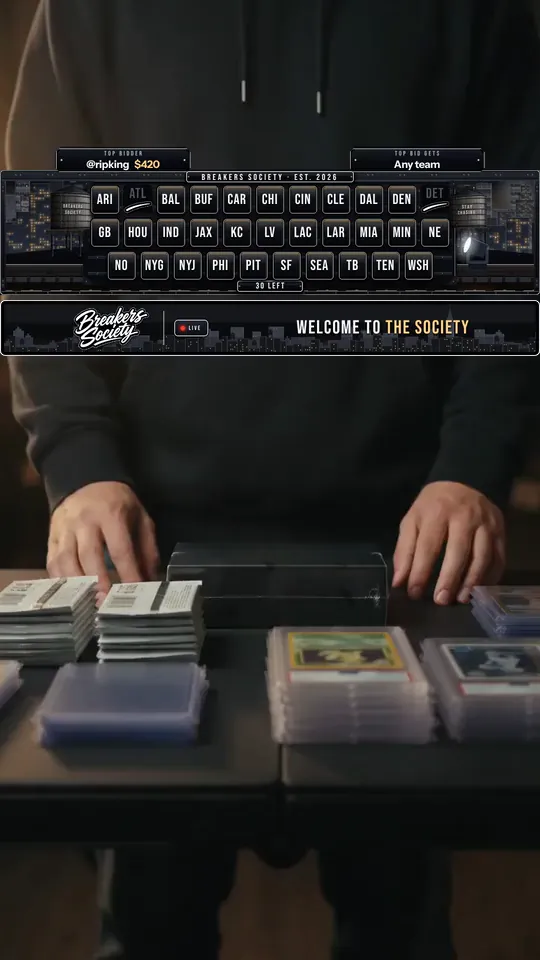
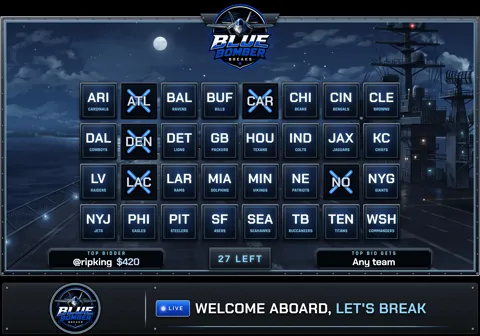
A break board is the on-screen graphic that shows every spot in a card break and who bought it (what is a break board). Many run in OBS as a browser source, a web page drawn over your cameras. When one goes blank or freezes, only the display has stopped; the cards and the buyers are where they were.
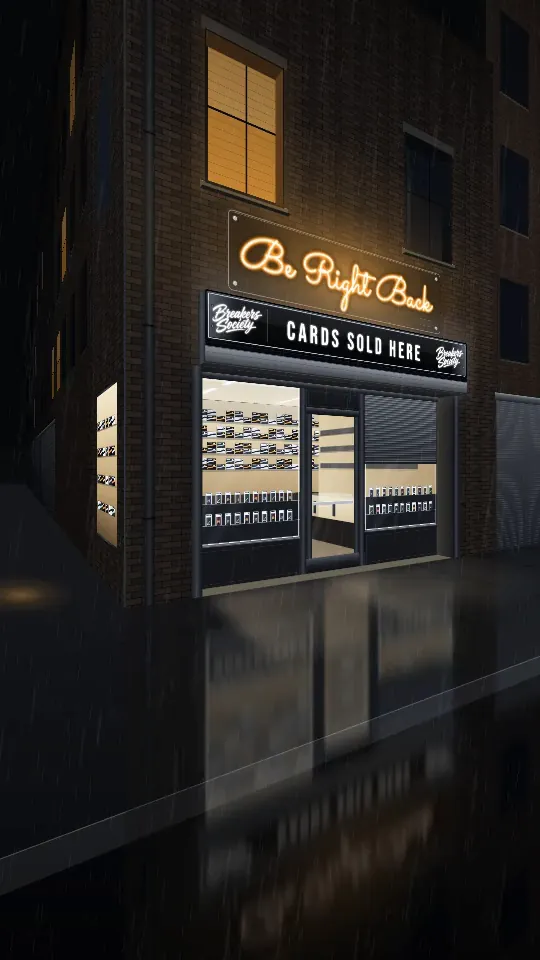
- Keep the cards on camera. As of November 2026, Whatnot’s Card Breaks Policy says “the full display of any Card Break must be kept onscreen from the sale of an item to the end of the Break.” Don’t cut to a full-screen “be right back” scene to hide the problem: stream scenes belong before, between and after breaks, never during one (stream scenes for breakers).
- Tell chat. Something like “the board’s reloading, nobody’s spot changes” keeps the room calm while you fix it.
- Work out which problem you have. Only the board is wrong: see why a break board goes blank or freezes. OBS closed: see restarting OBS and Safe Mode. OBS looks fine but the stream stopped: that’s the connection to Whatnot, not the board (how to set up OBS for Whatnot).
- Check the board against Whatnot before the next sale. If you run the break with Whatnot’s Breaks feature, its Break Manager tracks who bought each spot; that’s the record, and the board only shows it (how to run Whatnot’s Break Manager with a break board). Fix anything missing or wrong, then carry on.
Policy facts checked 10 November 2026: Whatnot Card Breaks Policy · Whatnot Breaks feature · Whatnot: Using OBS
Why is my break board blank or frozen in OBS?
Start with the quickest check and work down. Each fix below is a setting in OBS, so it applies to any board that runs as a browser source, whoever made it.
| What you see | Likely cause | Fix |
|---|---|---|
| The board has disappeared | The source is hidden, sits under your camera, or isn’t in this scene | In the Sources list, turn its eye icon back on and drag it above your cameras; sources higher in the list sit on top. |
| Blank after moving files or changing computers | The browser source points to a file that’s no longer there | Open the source’s Properties and, with Local file ticked, browse to the board file again. |
| Blank on a board that loads from a web address | No internet, or the address or the service behind it is down | Check your connection and the URL in Properties. A board that loads from a web address needs the internet to load. |
| A white or colored box behind the board | The Custom CSS box was edited or cleared; OBS’s default makes the background transparent | Put back the default: body { background-color: rgba(0, 0, 0, 0); margin: 0px auto; overflow: hidden; } |
| The board is cut off, tiny or laid out wrong | Width and Height don’t match the size the board was made for | Set them to the size its maker gives. They set the size of the page itself; to make the board bigger or smaller on screen, resize it on the canvas instead. |
| Blank every time you switch scenes or hide it | Shutdown source when not visible or Refresh browser when scene becomes active is ticked, so OBS reloads the page | Untick both, unless you know your board brings its sold spots back after a reload. |
| The board shows but ignores its control panel | The panel has lost its link to the board | Reload the control panel first, then the board. If the panel connects through OBS’s WebSocket, check that Tools → WebSocket Server Settings still has the server enabled and that OBS isn’t in Safe Mode. |
| Blank or glitching on one computer only, often a laptop with two graphics chips | The browser source is running on a different graphics chip from OBS | On Windows, choose the graphics chip for obs-browser-page.exe in Windows graphics settings. If the board still won’t render, untick Enable Browser Source Hardware Acceleration in Settings → Advanced and restart OBS. |
How to refresh a browser source in OBS
Open the browser source’s Properties and press Refresh cache of current page, which, in the words of OBS’s Knowledge Base, “will immediately refresh the page and reload any content.” Hiding the source and showing it again reloads it only if Shutdown source when not visible is ticked; with OBS’s default settings, the page keeps running while it’s hidden.
A reload restarts the board’s page. Some boards save their sold spots and put them back; others come back empty, and you re-enter the break by hand from Whatnot’s Break Manager. Find out which yours does before a show, not during one (pre-show check for your break board).
Facts checked 10 November 2026: OBS Knowledge Base: Browser Source · OBS wiki: Laptop Troubleshooting
OBS crashed mid-break: restarting and Safe Mode
After a crash, the next time OBS opens it says it didn’t shut down properly and offers to start in Safe Mode, with third-party plugins, scripts and WebSockets turned off. The two buttons are Run in Safe Mode and Run in Normal Mode (older versions: Run Normally).
During a Whatnot show, choose Run in Normal Mode. Whatnot says OBS shows are started from its Show Tools page “by connecting to the websocket” (Whatnot: Using OBS), and since OBS 33, Safe Mode doesn’t start the WebSocket server at all (OBS Studio 33.0 release notes). In Safe Mode, Show Tools has nothing to connect to, and neither does any board control panel that works through the WebSocket.
- Reopen OBS and choose Run in Normal Mode. Check that your scenes are there and the board is showing.
- Go back to Show Tools in Chrome. Refresh it, reconnect to the WebSocket and follow Whatnot’s prompts to get the stream back. As of November 2026, Whatnot’s OBS guide covers a failed start (“refresh the Show Tools page, reconnect to the OBS websocket, then click Start Show again”) but doesn’t describe recovering a show that was already live. If what you see doesn’t match, ask Whatnot support rather than guessing.
- Check the board against Whatnot’s Break Manager before you sell the next spot, and fix anything missing.
If OBS keeps crashing
If OBS crashes whenever you run it normally but opens in Safe Mode, a third-party plugin or script is a likely suspect, because Safe Mode loads none of them. That’s a job for after the show: update or remove the plugins you added most recently, one at a time, and test. OBS keeps a log of each session under Help → Log Files, which the OBS forums ask for when you post a problem.
Facts checked 10 November 2026: OBS Studio 33.0 release notes · OBS Knowledge Base: Launch Parameters (Safe Mode) · Whatnot: Using OBS
Why is OBS lagging or using so much CPU with a break board?
A break board is a web page, and OBS’s Knowledge Base warns that browser sources “can be very resource intensive.” If OBS shows an “encoding overloaded” warning, the CPU figure at the bottom of the OBS window stays high, or the board stutters, free up the computer before you change any settings:
- Close other heavy programs such as games, video editors and extra browser windows. Check Task Manager on Windows or Activity Monitor on a Mac, but, as OBS’s guide says, “don’t close programs unless you are sure what they are for.”
- Remove browser sources you don’t use. OBS’s guide singles out browser sources that fill the whole canvas and overlays that run complex JavaScript.
- Keep the board at its own size. OBS recommends browser source width and height at “the minimum required size”; for a break board, that’s the size its maker gives.
- On Windows, try running OBS as administrator. OBS says this lets it “ask Windows to reserve some GPU capacity for its use.”
- If viewers see you late. As of November 2026, Whatnot’s OBS guide calls about 2 seconds of delay normal; beyond that, it suggests a faster CPU Usage Preset (superfast or ultrafast) in OBS’s Output settings. It applies to the x264 software encoder.
- Treat dropped frames as a network problem. OBS says they mean “your connection to remote server isn’t stable or you can’t keep up with your set bitrate.” Whatnot’s OBS guide recommends wired ethernet over Wi‑Fi.
Whatnot’s first-time setup applies its own output settings, so check View Required Settings in Show Tools before changing resolution or frame rate (how to set up OBS for Whatnot).
Facts checked 10 November 2026: OBS: Encoding Performance Troubleshooting · OBS: Stream Connection Troubleshooting · Whatnot: Using OBS
Before every Whatnot show: a pre-show checklist for OBS and your break board
Before every Whatnot show in OBS, open OBS in Normal Mode and confirm its WebSocket server is on. Check each scene’s cameras, mic and break board, and put the break rules in Show Notes or the item listings, as Whatnot requires as of November 2026. Mark a test spot, check it survives a reload and a restart, then clear it. Plug in ethernet and connect Show Tools last.
Run this on the computer you stream from, about ten minutes before you go live; the first time, do it the day before. For a fuller test of a new board, see how to test a break board before you go live.
- Don’t update right before a show. OBS, Windows and macOS updates can change how browser sources behave; OBS 33’s release notes describe “a massive update to the underlying framework used for browser sources and docks.” After any update, run this whole check before your next show.
- Open OBS normally, not in Safe Mode, and confirm Tools → WebSocket Server Settings still has the server enabled.
- Look at every scene you’ll use. The board shows, sits above your cameras and stays clear of the app’s buttons and chat (Whatnot’s vertical safe zones).
- Check every camera and your mic. In each scene you’ll use during a break, every camera shows a picture and the wide shot keeps all the product in the break in view. As of November 2026, Whatnot’s Card Breaks Policy says the full display must stay onscreen “from the sale of an item to the end of the Break.” Speak at show volume and watch the mic meter in OBS.
- Put the break rules where Whatnot asks. The Card Breaks Policy says the rules for any break must be “in Show Notes or in the item listings for the Card Break. This includes, if relevant, what is considered ‘base’ or ‘bulk’ cards, and how those cards will be distributed.”
- Mark a test spot. Mark a made-up buyer and check that the board updates on the canvas.
- Test a reload and a restart. With the test spot still marked, switch to your between-breaks scene and back, press Refresh cache of current page, then close and reopen OBS. If the spot survives all three, the board keeps its sold spots through a reload and a restart; a crash isn’t a clean close, so still check the board against Whatnot’s Break Manager after one. If the spot doesn’t survive, you’d re-enter spots by hand from the Break Manager. Then clear the test spot.
- Close heavy programs and plug in the network cable. As of November 2026, Whatnot’s OBS guide recommends wired ethernet over Wi‑Fi for OBS shows.
- Connect Show Tools last. Whatnot’s OBS guide says to connect to the WebSocket from Show Tools only “immediately before starting your show.”
- Keep Whatnot’s Break Manager in view. It tracks who bought each spot; keep it open on your streaming computer or a second screen, so you can check the board against it quickly.
- Once you’re live, watch from a second account. Whatnot’s OBS guide says you can’t view your show’s live video from the app while signed in to the seller account that’s live, so open it from another account on a second phone or device and check the board, cameras and sound.
On Windows
- If OBS warns of overload, right-click the OBS Studio shortcut and choose Run as administrator.
- On a laptop with two graphics chips, if the board renders blank, set obs-browser-page.exe to the right chip in Windows graphics settings.
- Security software can block OBS’s connection. OBS suggests turning it off briefly to test and, if that fixes it, adding an exception for OBS.
On a Mac
- Check what OBS may use from the OBS Studio menu → Review App Permissions, which lists Screen Recording, Camera, Microphone and Accessibility.
- Check that your Mac can run the current OBS. As of November 2026, OBS’s macOS versions page lists macOS 13 Ventura and newer.
Facts checked 10 November 2026: Whatnot Card Breaks Policy · OBS: macOS Permissions Guide · OBS: macOS versions · OBS: Stream Connection Troubleshooting · OBS Studio 33.0 release notes · Whatnot: Using OBS
Disclosure: BreakerStudio, which publishes this guide, builds custom break boards. As of November 2026, a BreakerStudio board is $799 once and yours to keep, with custom break animations, stream scenes, a control panel and a year of updates included. After the first year, updates are $99 a year and renew automatically until you turn them off; you keep your board either way. We’ll make you a free preview first.
Quick answers
Why is my break board blank in OBS?
A blank break board in OBS is usually a browser source problem: the source is hidden or under your camera, its file has moved, its width and height don’t match the board, or a setting reloads it whenever you switch scenes. Check each in the source’s Properties, then press Refresh cache of current page.
How do I refresh a break board in OBS?
To refresh a break board in OBS, open its browser source’s Properties and press Refresh cache of current page, which reloads the page at once. Hiding and showing the source reloads it only if Shutdown source when not visible is ticked. A reload restarts the board, so test before a show whether yours keeps its sold spots.
Should I use OBS Safe Mode during a Whatnot show?
No. After a crash during a Whatnot show, reopen OBS and choose Run in Normal Mode (older versions: Run Normally). Since OBS 33, Safe Mode doesn’t start OBS’s WebSocket server, which Whatnot’s Show Tools connects to when it starts an OBS show, so Show Tools can’t connect. Safe Mode is for after the show, to find a plugin that keeps crashing OBS.
Will a break board keep its sold spots if OBS crashes?
A break board keeps its sold spots after an OBS crash only if it saves them; some do, and others reload empty. Test yours before a show: mark a spot, close and reopen OBS, and see whether it comes back. On Whatnot, if you run the break with the Breaks feature, Whatnot’s Break Manager still records every spot and buyer.
What should I do if OBS crashes during a Whatnot show?
If OBS crashes during a Whatnot show, reopen it and choose Run in Normal Mode (older versions: Run Normally), not Safe Mode. Then refresh Whatnot’s Show Tools page in Chrome, reconnect to the OBS WebSocket and follow Whatnot’s prompts; as of November 2026, Whatnot’s OBS guide doesn’t describe recovering a show that was already live. Check the board against Whatnot’s Break Manager before selling the next spot.
Why does OBS use so much CPU with a break board?
OBS draws a break board as a browser source, and OBS’s own guide says browser sources can be very resource intensive. Close other heavy programs, remove browser sources you don’t use, keep the board at the size it was made for, and on Windows try running OBS as administrator.
 How to set up OBS for Whatnot
 Where does the Whatnot app cover your stream?
 How to choose a break board
 Stream scenes for Whatnot card breaks