Where does the Whatnot app cover your stream?
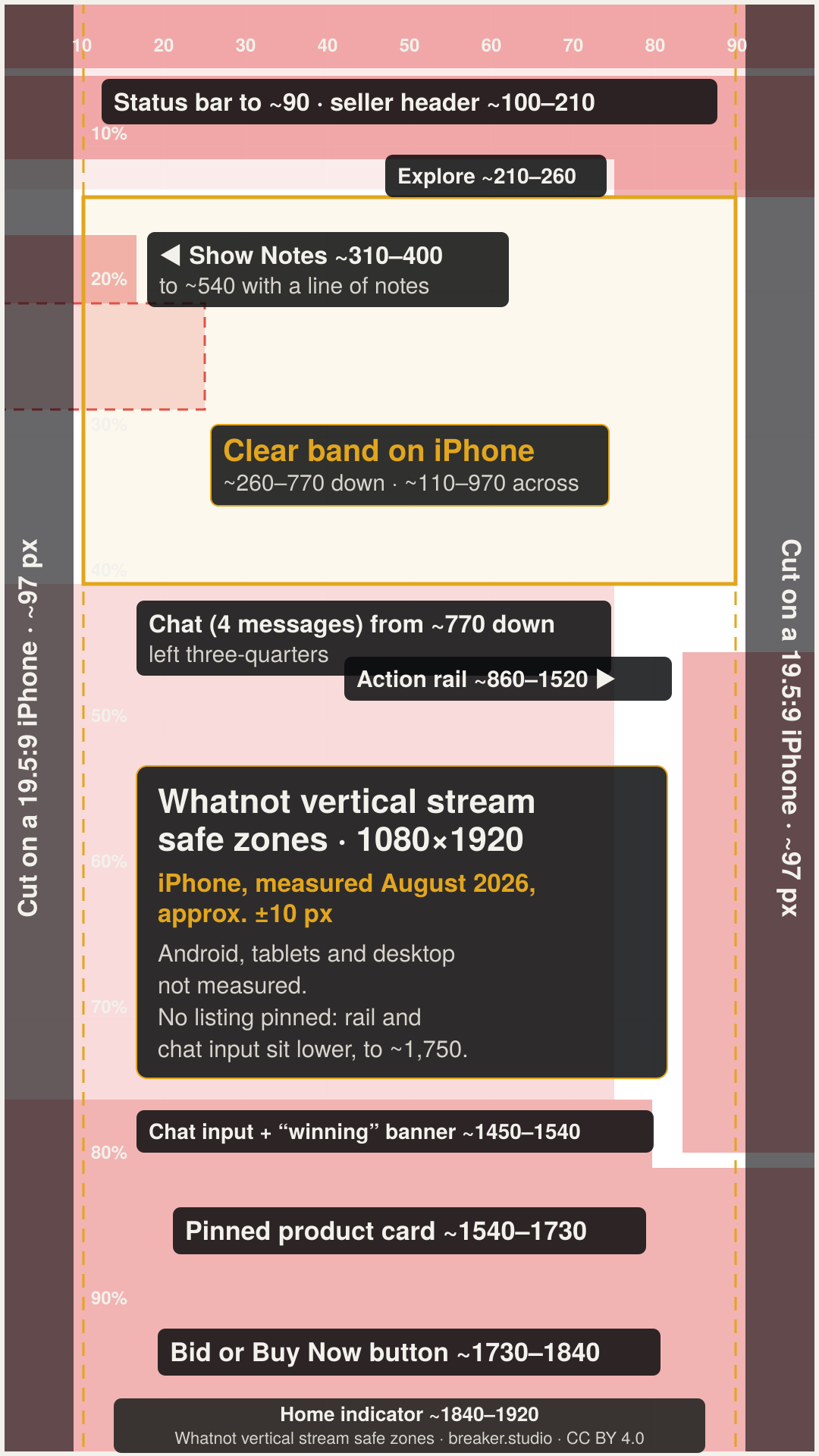
A Whatnot stream from OBS is a 1080×1920 vertical canvas, and the Whatnot app draws its header, chat, buttons and product card over parts of it. On iPhone the app fills the screen rather than adding black bars, so about 97 pixels are cut from each side, by BreakerStudio’s August 2026 measurements. A border test, a framed test image watched from a second account, shows what covers yours.
By Michael at BreakerStudio · Updated
How to check where Whatnot covers your stream: the border test
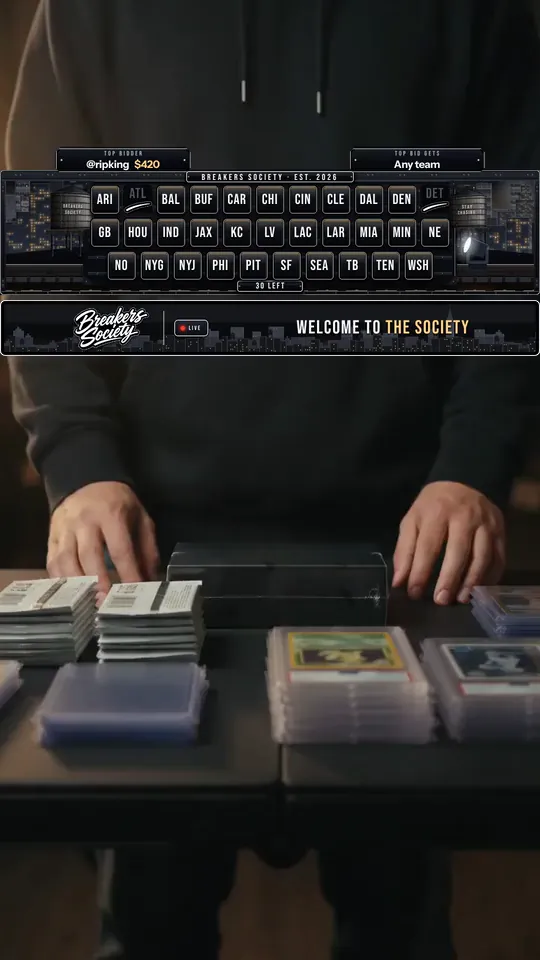
A border test shows exactly where the Whatnot app covers your own stream. Put a 1080×1920 transparent PNG with an outline at the edge and numbered lines every 10% on top of your OBS scene, go live, and watch from a second Whatnot account with chat and a pinned listing showing. Screenshot the phone and read which lines are cut or covered.
As of November 2026, Whatnot doesn’t publish safe-zone guidance for overlays, as far as we could find, and the app’s layout can change with any update. The surest way to know what covers your own stream is to look at it. The test takes about ten minutes.
- Get a test image. Download the free safe-zone test image below, or make your own. In any image editor that can save a transparent PNG, make a 1080×1920 image with a transparent background. Draw a thin line around the very edge, then a numbered line every 10%: every 192 pixels down and every 108 pixels across. A second outline 110 pixels in from each side makes the side crop easy to spot.
- Put it on top in OBS. Add it as an Image source at the top of your source list, right-click it and choose Transform, then Fit to screen. Your camera and board show through the transparent background.
- Go live and watch from a second account. Whatnot says you can’t view your show’s live video from the seller account that’s streaming from OBS; you have to watch it from another account (Whatnot: Using OBS with your Livestream).
- Bring up everything the app shows. Send a few chat messages from the second account, and pin a listing without starting it. In Whatnot’s own iPhone screenshots the product card and button show before an auction starts, so nothing has to sell while the test image is up.
- Screenshot the whole screen and read it. If the outer line is missing at the left and right, the app is filling the screen and cropping the sides; the first line you can see tells you by how much. Black bars above and below the outline mean it’s letterboxing. Then note which lines the header, chat, side buttons and product card cover.
- Repeat on each kind of screen. An iPhone, an Android phone, a tablet and a desktop browser can each show the stream differently. Run it again after a big Whatnot app update.
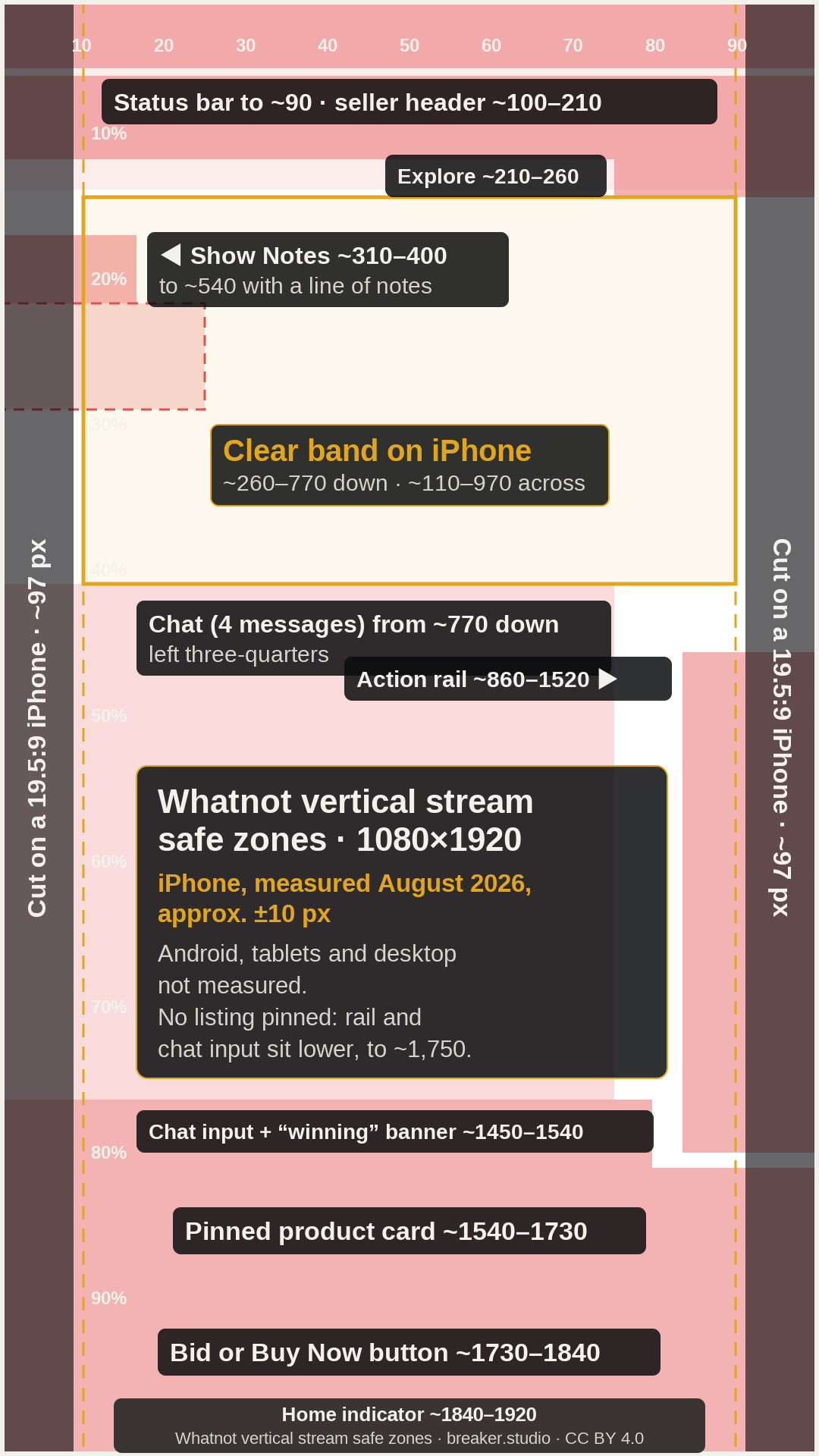
Hide the test image before you sell anything. Keep the screenshots: they’re your own safe-zone map for placing a break board, a mid bar or a camera split.
What size should a Whatnot overlay be?
A Whatnot overlay should be 1080×1920 pixels, vertical 9:16, the same size as the stream. As of November 2026, Whatnot’s guide to streaming from OBS tells sellers to fit a “1080x1920 9:16 vertical canvas” and says that if OBS is detecting 1920×1080, “that’s incorrect” (Whatnot: Using OBS with your Livestream). Make full-screen overlays, test images and stream scenes such as starting soon and BRB screens at that size. Not every viewer sees all of it: on most iPhones the sides are cropped, and the app draws its buttons and chat over parts of the picture. Setting up the canvas is covered in how to set up OBS for Whatnot.
Why are the sides of a Whatnot stream cut off?
Most phones are taller and narrower than a 9:16 stream, so an app either adds black bars above and below (letterboxing) or fills the screen and crops the sides. On iPhone, the Whatnot app fills. BreakerStudio checked this in August 2026 on Whatnot’s own published iOS screenshots, including one of a stream sent from OBS: row by row, the video ran straight through where a black bar would sit, with no seam. So on iPhone:
- Top to bottom, nothing is cut. All 1,920 rows reach the screen, though the app draws over some.
- Left and right, the edges are cut. On a 19.5:9 iPhone about 82% of the width shows, so about 97 pixels go from each side.
| Screen shape | Width that shows | Cut from each side | How it’s known |
|---|---|---|---|
| 19.5:9 (most iPhones since the iPhone X) | About 82% | About 97 px | Fill seen in Whatnot’s iPhone screenshots; crop calculated from the screen shape |
| 20:9 (many Android phones) | About 80%, if Android also fills the screen | About 108 px | Calculated only; Android not measured |
| 16:9 (iPhone SE) | All of it | None | Calculated |
Tablets and the desktop site weren’t measured. Rule of thumb: keep anything people need to read, like team codes, usernames and the spots-left count, at least 110 pixels in from each side, between about 110 and 970 pixels across. That clears both the iPhone crop and the calculated Android one.
Where the Whatnot iPhone app covers a vertical stream
How it was measured. In August 2026, BreakerStudio measured the uncropped iOS screenshots Whatnot had published. Two are in its Help Center, in Clipping a Livestream and Policy-Compliant Camera Setup Recommendations (one of them a stream sent from OBS); the rest are in its App Store listing. Each part of the app was measured as a share of the screen’s height and converted to the 1920-pixel canvas. The smallest screenshot was about 450 pixels wide, so one screenshot pixel stands for roughly two canvas pixels: read every figure as about 10 pixels either way, with small differences between iPhone models. The screenshots may predate August 2026. The table shows the app with a listing pinned. In Whatnot’s OBS screenshot, with no listing pinned, the action rail and chat input sit lower, down to about 1,750 pixels.
| App element | Pixels down (of 1920), approx. | Share of height | Across |
|---|---|---|---|
| Status bar and Dynamic Island | 0 to about 90 | Top 4–5% | Full width |
| Seller header: avatar, name, Follow, viewer count | About 100 to 210 | 5–11% | Full width |
| Header shading (dims the video, doesn’t hide it) | 0 to about 250 | Top 13% | Full width |
| “Explore” button | About 210 to 260 | 11–13.5% | Right quarter |
| “Show Notes” tab | About 310 to 400; to about 540 with a line of notes showing | 16–28% | Left edge, a sixth to a quarter of the width |
| Chat, top of four messages | From about 770 down | From 40% | Left three-quarters |
| Action rail: More, Clip, Share, Wallet, Shop | About 860 to 1,520 | 45–79% | Right edge, about a sixth of the width |
| Chat input and “is winning” banner | About 1,450 to 1,540 | 75.5–80% | Left side |
| Pinned product card | About 1,540 to 1,730 | 80–90% | Full width |
| Bid or Buy Now button | About 1,730 to 1,840 | 90–96% | Full width |
| Home indicator | About 1,840 to 1,920 | 96–100% | Full width |
Where does Whatnot chat cover the stream?
On iPhone, Whatnot chat runs up the left three-quarters of the stream from the chat input, about 1,450 pixels down. With four messages showing, its top measured about 770 pixels down, 40% of the height. A busy break may show more messages and reach higher; the chat step in the border test shows yours.
Where to put a break board on a vertical Whatnot stream
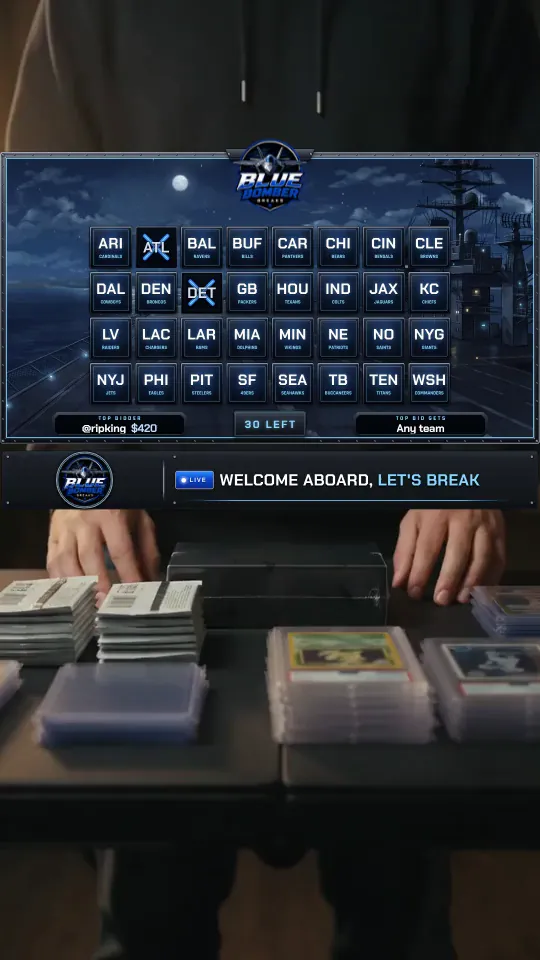
On a vertical Whatnot stream, a break board fits best in the upper band, above the cards and hands. On iPhone, BreakerStudio’s August 2026 measurements put that band at about 260 to 770 pixels down and 110 to 970 across a 1080×1920 canvas. The Show Notes tab overlaps its top-left corner, so keep codes and usernames out of that corner. Edges and corners suit frame artwork that can be covered.
The bottom is the hardest place for anything that has to be read: on iPhone the chat input, product card and bid button cover roughly the bottom quarter, and the action rail covers the right edge above it. A mid bar under the board stays clear of chat if it ends above about 770 pixels down.
Whatnot’s rules point the same way. As of November 2026, the Card Breaks Policy says “The full display of any Card Break must be kept onscreen from the sale of an item to the end of the Break,” including “hands while dealing with cards, or opening of product.” With the app over the top and bottom and the cards and hands in the middle and lower frame, the upper band is what’s left for a board. Many breakers shrink the board while they rip rather than hide it (how a break board works during a live break).
What these measurements don’t cover
- Android. The fill-the-screen behavior was seen on iPhone only. The Android figure is calculated from screen shape and assumes Android also fills the screen.
- Whatnot in a desktop browser. Not measured. Don’t assume it matches the phone.
- Tablets. Not measured.
- A busy chat. Chat was measured with four messages showing. A fast break may push it higher.
- App updates. The figures come from screenshots Whatnot had published, measured in August 2026. Whatnot can change its layout at any time.
- Any particular overlay. These figures describe the app, not any board or template. Only a border test on your own stream shows how yours looks.
Other platforms draw their buttons and chat in other places; see break boards on eBay Live and other platforms.
Policy facts checked 10 November 2026: Whatnot: Using OBS with your Livestream · Whatnot Card Breaks Policy · Whatnot: Policy-Compliant Camera Setup Recommendations · Whatnot: Clipping a Livestream
Disclosure: BreakerStudio, which publishes this guide, builds custom break boards and took these measurements to lay out its own. As of November 2026, a BreakerStudio board is $799 once and yours to keep, with custom break animations, stream scenes, a control panel and a year of updates included. After the first year, updates are $99 a year and renew automatically until you turn them off; you keep your board either way. We’ll make you a free preview first.
Quick answers
What size is a Whatnot overlay?
A Whatnot overlay is 1080×1920 pixels, vertical 9:16, the same as the canvas. As of November 2026, Whatnot’s guide to streaming from OBS sets a 1080×1920 vertical canvas and says a 1920×1080 reading is incorrect (Whatnot: Using OBS with your Livestream). On most iPhones the side edges are cropped, so keep anything that must be read between about 110 and 970 pixels across.
Why are the sides of my Whatnot stream cut off?
The sides of a Whatnot stream are cut off on iPhone because the app fills the taller phone screen with the 9:16 stream instead of adding black bars. BreakerStudio’s August 2026 check of Whatnot’s own iOS screenshots found the app fills the screen; on a 19.5:9 iPhone that works out to about 97 pixels cut from each side, with nothing cut from the top or bottom. Android, tablets and the desktop site weren’t measured; a border test shows your own crop.
Where does Whatnot chat cover the stream?
Whatnot chat covers the left three-quarters of the stream on iPhone, by BreakerStudio’s August 2026 measurements. It rises from the chat input, about 1,450 pixels down, to about 770 pixels down with four messages showing. A busy chat may reach higher. Check your own stream from a second account.
Does Whatnot publish safe zones for overlays?
No, not as far as we could find as of November 2026. Whatnot’s guide to OBS gives the 1080×1920 canvas but no safe area for overlays. The figures in this guide are BreakerStudio’s own measurements from Whatnot’s published iPhone screenshots, approximate and iPhone only.
What are the safe zones on a vertical Whatnot stream?
Whatnot doesn’t publish overlay safe zones as of November 2026. On iPhone, BreakerStudio’s August 2026 measurements of Whatnot’s own screenshots found one band of a 1080×1920 stream clear of the app’s header, chat, buttons and product card. It runs about 260 to 770 pixels down and 110 to 970 across, minus the Show Notes tab at its top-left. Approximate and iPhone only.
 How to set up OBS for Whatnot
 What is a break board?
 How to choose a break board
 Break boards on eBay Live, TikTok Shop and Fanatics Live