How to set up OBS for Whatnot.
To set up OBS for Whatnot, use OBS Studio 30 or newer, turn on its WebSocket server with your own password, and connect from Whatnot’s Show Tools page in Google Chrome. Show Tools applies Whatnot’s settings, including the vertical 1080×1920 canvas, and puts a new bearer token into OBS for every show. Restart OBS after first setup, use wired internet, and start each show from Show Tools.
By Michael at BreakerStudio · Updated
What do you need to stream to Whatnot from OBS?
- OBS Studio 30 or newer. Whatnot streams from OBS over WHIP, which OBS added in version 30 (OBS Studio 30 release-candidate notes). The WebSocket server that Show Tools connects to has been built into OBS since version 28 (OBS remote control guide). Whatnot names no minimum version. As of November 2026 the current one is 33.0.1, free from obsproject.com.
- A Windows or Mac computer. OBS 33 runs on Windows 10 and 11 and on macOS 13 or newer. Whatnot’s OBS article gives one set of steps and doesn’t separate Windows from Mac.
- Google Chrome. Whatnot says Chrome is the only browser Show Tools supports.
- A wired internet connection. Whatnot says WHIP “expects a very consistent and strong network connection” and highly recommends wired ethernet over Wi‑Fi.
- A scheduled show on your Whatnot seller account.
- Cameras and a microphone. At least one camera that keeps the whole break in view (cameras below).
How to connect OBS to Whatnot: first-time setup
- In OBS, open Tools → WebSocket Server Settings. Tick Enable WebSocket server and Enable Authentication.
- Type a password of your own and press Apply. Whatnot says not to use the auto-generated password.
- In Chrome, open Whatnot’s Show Tools page (its help article also calls it the OBS Tools page) and connect to the WebSocket with that password.
- Press Update Profile (First Time Setup Only). This applies Whatnot’s required output settings, including the 1080×1920 vertical canvas.
- Close OBS completely, reopen it, and reconnect from Show Tools before your first show. Whatnot says OBS often doesn’t recognize the new resolution until it restarts.
- Press View Required Settings and check each value against OBS. In Settings → Stream, the Service must be WHIP. Leave the Server and Bearer Token alone: Show Tools fills them in each time you go live.
The canvas size is in OBS under Settings → Video, where the Base (Canvas) Resolution should read 1080x1920. If the Health Check window on Show Tools reports 1920x1080, close and reopen OBS and check again.
What OBS settings does Whatnot need?
As of November 2026, Whatnot needs OBS set to a vertical 1080×1920 canvas with the Stream Service set to WHIP. Whatnot’s OBS help article publishes no bitrate, frame rate or encoder. Its Show Tools page applies the required settings when you press Update Profile (First Time Setup Only), and View Required Settings lists them, so match those rather than settings from a guide written for another platform.
Moving an old horizontal scene to the vertical canvas
Whatnot’s tip: add a Group, Shift-select all your sources and drag them into it, then scale and move the group to fit the 1080×1920 canvas.
Sources: Whatnot: Using OBS with your Livestream · OBS remote control guide · OBS Studio 30 release-candidate notes · OBS download page
How to go live on Whatnot from OBS
- Get OBS ready first, and put your break rules in Show Notes or the item listings, as Whatnot’s Card Breaks Policy requires.
- Open Show Tools and connect to the WebSocket right before you start. Whatnot says a long-open connection causes start errors.
- Press Start Show next to the show you want. Show Tools puts that show’s bearer token into OBS and starts the stream. Don’t start it from the show’s livestream page.
- Use the OBS preview as your monitor, not the live stream. Whatnot calls about 2 seconds of delay to viewers normal.
While you’re live from OBS, the Whatnot app on your seller account can’t show your video: it works as a show controller over a grey Whatnot logo. To see what buyers see, open the show in a desktop browser or from a different account. Never use that account to buy into your own break: the Card Breaks Policy bars participants related to the seller, including “through other relationships or account use.”
How to set up OBS scenes for a card break
A scene is a saved layout; the source at the top of its Sources list sits in front. A typical break scene, from back to front:
- A background, if the cameras don’t fill the canvas.
- The wide camera that keeps every product in the break in view.
- The product camera, close on the packs and your hands.
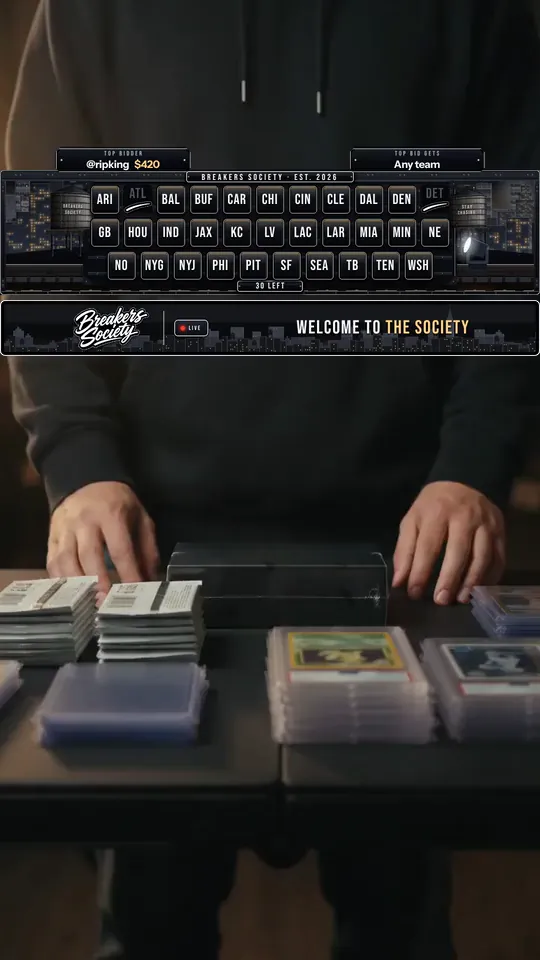
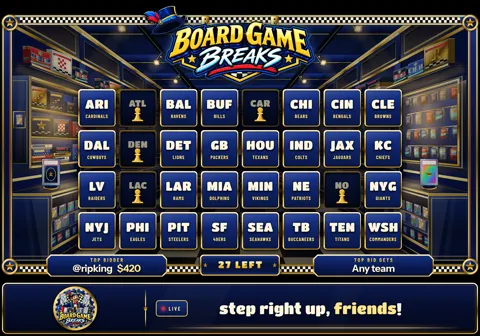
- The break board, as a browser source.
- The mid bar, if it’s a separate source.
| Scene | What’s in it | When it’s on screen |
|---|---|---|
| Break | Both cameras, the board at full size, the mid bar | While spots are selling |
| Rip | The same cameras, with the board shrunk so the cards get most of the screen | While the product is opened and sorted |
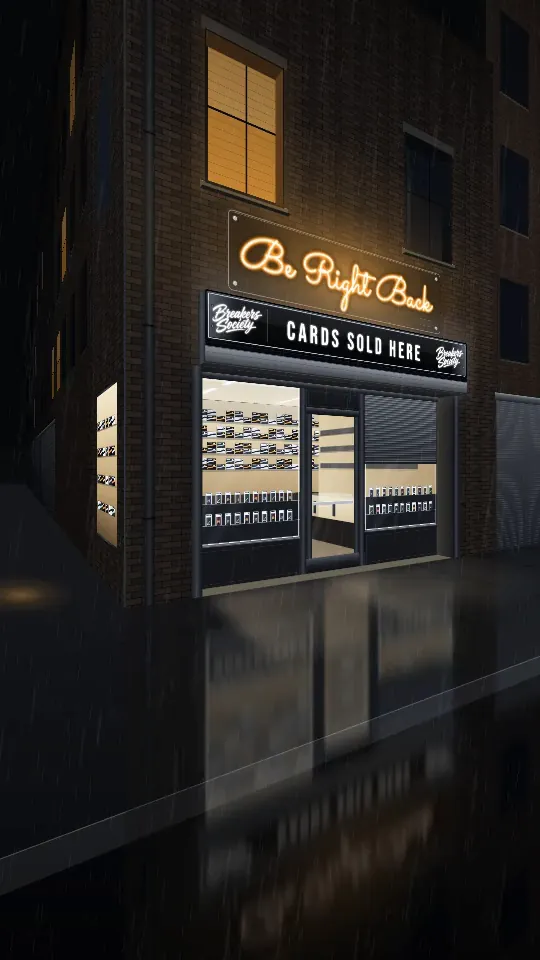
| Stream scenes: starting soon, be right back, ending | A full-screen layout | Before the show, between breaks and after, never during a break |
The last row follows from Whatnot’s Card Breaks Policy: “The full display of any Card Break must be kept onscreen from the sale of an item to the end of the Break.” More in stream scenes for breakers.
To put the board in the Rip scene, press + under Sources, choose Browser, and pick your board from the existing sources instead of creating a new one (Add existing; older versions: Add Existing). Both scenes then share one copy of the board, so the sold spots match, and you can still size it differently in each.
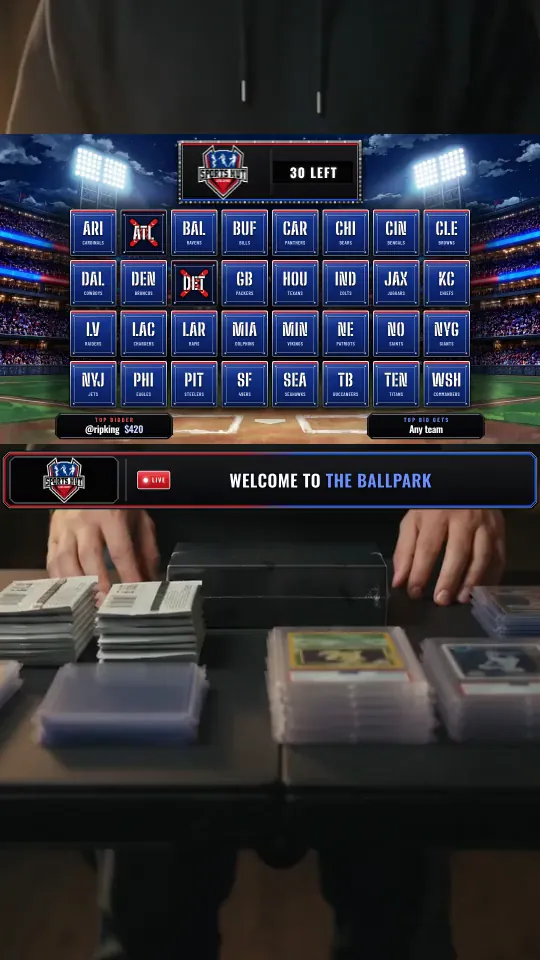
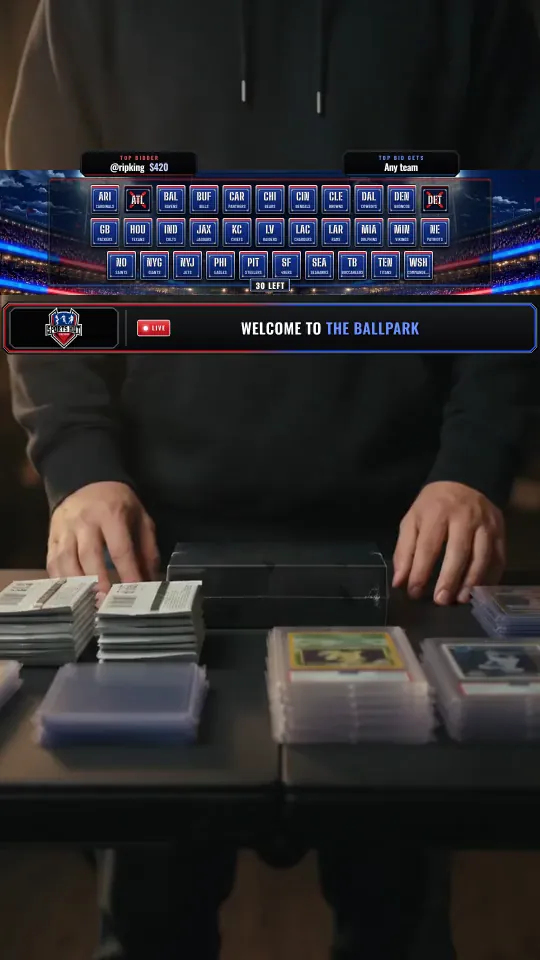
The same board at full size for selling spots, and shrunk for the rip.
Hotkeys
In Settings → Hotkeys, each scene has a Switch to scene entry. Give each scene a key you can reach with one hand while the other holds cards.
Camera setup for Whatnot card breaks
As of November 2026, Whatnot’s Card Breaks Policy says: “The full display of any Card Break must be kept onscreen from the sale of an item to the end of the Break. This can be done over multiple cameras.” That includes sealed and unsealed product, tools, and hands while dealing cards. One of Whatnot’s policy-compliant camera setups is built in OBS. An overhead camera on a high stand above the desk shows all the products in the break, and a phone camera closer to the desk is the main product camera for opening packs.
- Wide camera. Frame every box, pack and card in the break, in every scene you use during it.
- Product camera. A phone reaches OBS through a webcam app, or on a Mac with an iPhone through Apple’s Continuity Camera. It usually appears in OBS as a Video Capture Device.
- Light. Light the mat from the side, diffused, so chrome and slabs don’t flash white. Lock focus and exposure if the camera allows, so the picture doesn’t pulse as cards move.
- Room for the board. Keep the action mid-frame and the board above it. On phones, Whatnot’s chat and buttons sit over parts of the picture; where they fall is in Whatnot vertical overlay safe zones.
How to set up your microphone in OBS
- Set the mic once, for every scene. Choose it in Settings → Audio under Global Audio Devices, as Mic/Auxiliary Audio. It then plays in every scene.
- Set the level. OBS’s audio mixer guide says speech should sit in the upper range of the meter’s yellow zone and reach the lower end of the red, the zone where audio is close to clipping.
- Cut room noise. In the Audio Mixer, open the mic’s menu, choose Filters, and add Noise Suppression for fan and air-conditioner hum.
- Board and animation sound. If your board or break animations play sound, tick Control audio via OBS in that browser source’s properties, so it gets its own slider in the mixer.
How to add a break board to OBS
Many break boards (what a break board is) go into OBS as a Browser source: press + under Sources, choose Browser, then create a new one with Add a new Browser (older versions: Create new). The settings that matter:
- URL or Local file. A board hosted online uses its web address. A board delivered as a file on your computer uses the Local file tick box and Browse.
- Width and Height. These set the size of the page itself, not how big it looks on stream (OBS browser source guide). Enter the size your board’s instructions give; for a board made to fill the vertical canvas, that’s 1080 by 1920. Changing them re-lays out the page and can cut parts off. To resize the board, drag any handle in the preview or use right-click → Transform. OBS keeps the board’s proportions as you drag; holding Shift while dragging stretches it out of shape.
- Interact. Right-click the source and choose Interact to click and type into the page. Graphics-only boards are often updated this way.
- Shutdown source when not visible and Refresh browser when scene becomes active. Both are off by default; turned on, they unload or reload the page when you hide it or change scenes. Whether that clears your sold spots depends on whether the board saves its state, so test it first.
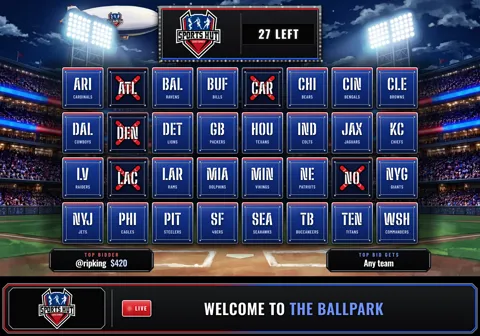
The board shows the break; Whatnot runs it. Spots sell through Whatnot, and in a random team break Whatnot’s randomizer assigns the teams (how Whatnot’s Breaks feature and your board work together). A board in OBS must never pick teams itself: as of November 2026, the Card Breaks Policy bans “digital wheels run through third-party websites and streaming software” (Whatnot randomizer wheel rules).
Disclosure: BreakerStudio, which publishes this guide, builds custom break boards. As of November 2026, a BreakerStudio board is $799 once and yours to keep, with custom break animations, stream scenes, a control panel and a year of updates included. After the first year, updates are $99 a year and renew automatically until you turn them off; you keep your board either way. We’ll make you a free preview first.
How to test your OBS setup before your first Whatnot show
Do these once, after first-time setup:
- After the restart, check in OBS that Settings → Video reads 1080x1920 and Settings → Stream shows WHIP, then reconnect from Show Tools. If a Health Check pop-up appears, it shows the canvas size Whatnot detects.
- Mark a test spot on the board, then switch scenes with your hotkeys: the spot should show in every scene that uses the board. Clear it afterwards.
- With a test spot marked, hide the board and show it again, then close and reopen OBS. If the spot disappears, your browser source settings or the board itself don’t keep its state, which is worth knowing before a real break.
- On your first show, watch from a desktop browser or a second account and check the board reads on a phone screen.
Before every show after that, run the before-every-show checklist; if a board goes blank, stops updating or loses its spots, see how to keep your break board running in OBS.
How to fix common Whatnot OBS errors
If Whatnot’s Show Tools page won’t connect to OBS’s WebSocket, Whatnot lists these causes: a mistyped password, an auto-generated password instead of your own, Apply not pressed after setting it, a browser other than Google Chrome, or a Chrome extension getting in the way (try an Incognito window). Also check that Enable WebSocket server and Enable Authentication are both ticked in OBS.
| What you see | Cause Whatnot gives | Fix |
|---|---|---|
| Show Tools won’t connect to the WebSocket | Wrong or auto-generated password; Apply not pressed; not Chrome; a Chrome extension; server or authentication off | Retype your own password, press Apply; use Chrome; try Incognito; tick both boxes |
| Health Check shows 1920x1080 | OBS hasn’t picked up the new canvas | Close OBS completely, reopen it, reconnect |
| “Failed to set show to playing” | Show Tools was left connected too long before the start | Refresh Show Tools, reconnect, press Start Show again |
| “Starting the output failed. Please check the log for details” | OBS settings don’t match, usually the Stream tab | Compare with View Required Settings; set the Stream Service to WHIP |
| Connects, but the show won’t start, or OBS shows an output error | A firewall blocking WHIP (often on corporate networks), mismatched settings or a weak connection | Whatnot says to disable firewalls; on a work network, try another connection. Check View Required Settings; use ethernet |
| “Failed to connect” | Usually the network connection | Switch from Wi‑Fi to wired ethernet |
| More than 2 seconds of delay | Your network or computer isn’t strong enough to encode live video quickly | With the x264 encoder, set the CPU Usage Preset to superfast or ultrafast (x264 presets); check packet loss, not only speed |
| Your phone shows a grey Whatnot logo, not your video | You’re signed in as the seller who is live | Watch from a desktop browser or a different account |
Source: Whatnot: Using OBS with your Livestream, troubleshooting and FAQ.
Screen sharing and multistreaming on Whatnot
No OBS? Share your screen instead
If you host from your phone, Whatnot’s screen sharing adds a computer screen to the show as a second view alongside your camera; in the mobile app you can tap the double-arrow icon to swap which view appears on top. On the computer, go to Seller Hub → Shows and click Start Sharing under your active show; audio is shared only from a browser tab.
Streaming to Whatnot and other platforms at once
Whatnot’s OBS article says you can multicast to Whatnot and other platforms through third-party OBS plugins, at your own discretion and without Whatnot support. Two rules matter for breaks. Whatnot’s Card Breaks Policy says spots in a Whatnot break can’t be sold off Whatnot, including as pre-sales, and all the product must be opened in the same show. eBay Live’s policy says eBay Live events “may not be simultaneously streamed on other live-commerce platforms,” while non-auction platforms such as Twitch, YouTube or Instagram are allowed. More in streaming a card break to two platforms at once.
Policy facts checked 10 November 2026: Whatnot: Using OBS with your Livestream · Whatnot Card Breaks Policy · Whatnot policy-compliant camera setups · Whatnot Breaks feature · Whatnot screen sharing · eBay Live policy
Quick answers
Does Whatnot use a stream key for OBS?
Whatnot doesn’t use a fixed stream key for OBS. It uses a bearer token, its version of a stream key, that changes with every scheduled show. Whatnot’s Show Tools page puts each show’s token into OBS through the WebSocket connection when you press Start Show, so you never copy one by hand.
What version of OBS do you need for Whatnot?
Use OBS Studio 30 or newer for Whatnot: Whatnot streams from OBS over WHIP, which OBS added in version 30, and the WebSocket server Show Tools uses has been built in since OBS 28. Whatnot’s help article names no minimum version. As of November 2026 the current release is OBS 33.0.1 from obsproject.com.
Does OBS for Whatnot work on a Mac?
Yes. OBS for Whatnot works on a Mac and on Windows; as of November 2026 the current release, OBS 33, needs macOS 13 or newer, or Windows 10 or 11. The steps are the same: turn on OBS’s WebSocket server, connect from Whatnot’s Show Tools page in Google Chrome, and start each show there.
Can you stream to Whatnot from OBS on Wi‑Fi?
You can, but Whatnot advises against it. Whatnot’s OBS article says WHIP, the protocol it uses for OBS, “expects a very consistent and strong network connection,” and highly recommends wired ethernet over Wi‑Fi.
Can you multistream a Whatnot break from OBS?
Whatnot says multicasting from OBS is possible through third-party plugins it doesn’t support. For a break, Whatnot’s Card Breaks Policy says spots can’t be sold off Whatnot and the product must be opened in the same show. eBay Live doesn’t allow its events to stream on other live-commerce platforms at the same time.
Why can’t I see my own Whatnot stream from OBS on my phone?
The Whatnot app can’t show your video while you’re signed in as the seller who is live from OBS; it works as a show controller over a grey Whatnot logo. If a desktop browser shows your video, you’re live. To watch on a phone, use a different account.
 Where does the Whatnot app cover your stream?
 How to keep a break board running in OBS
 Stream scenes for Whatnot card breaks
 How to use Whatnot’s Breaks feature with a break board