Stream scenes for Whatnot card breaks.
Stream scenes are the full-screen layouts a card breaker shows on Whatnot outside a break: a starting soon screen while the room fills, a be right back (BRB) screen between breaks, and an ending screen to close the show. They never run during a break, because Whatnot requires the full break to stay onscreen from the sale of an item to the end of the break.
By Michael at BreakerStudio · Updated
What are stream scenes in a card break show?
Stream scenes are full-screen layouts that replace your break layout (the cameras, the break board and the mid bar) when no break is running. Many break shows use three:
| Scene | When it’s up | What it’s for |
|---|---|---|
| Starting soon | From going live until the first spot of the first break goes on sale | Holds the room while viewers arrive and tells them what’s coming |
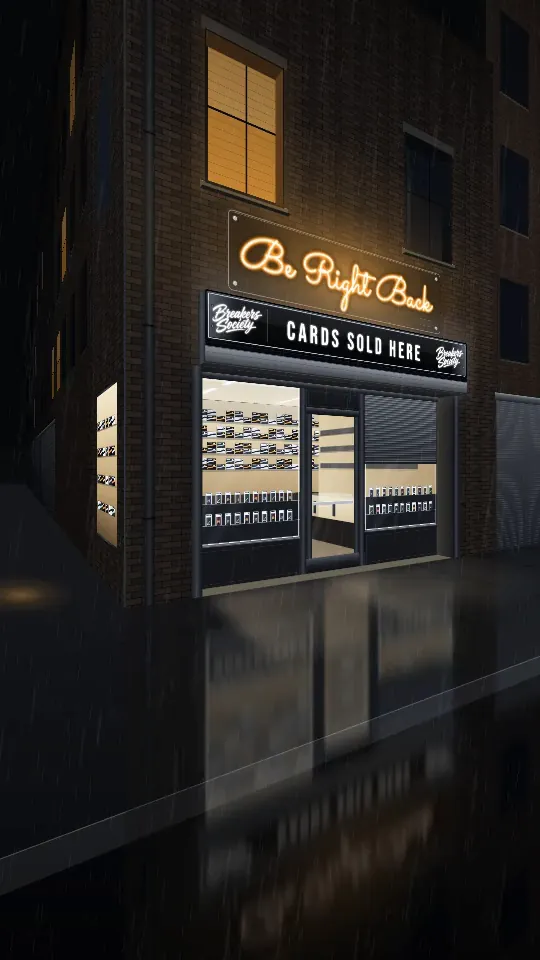
| Be right back (BRB), also called on break or intermission | Between breaks: after one break is over, with every card dealt out on camera, and before the next one starts selling | Covers a reset, a restock or a short pause without a frozen camera |
| Ending | After the last break of the show is finished | Thanks buyers, says when you’re next live and closes the show |
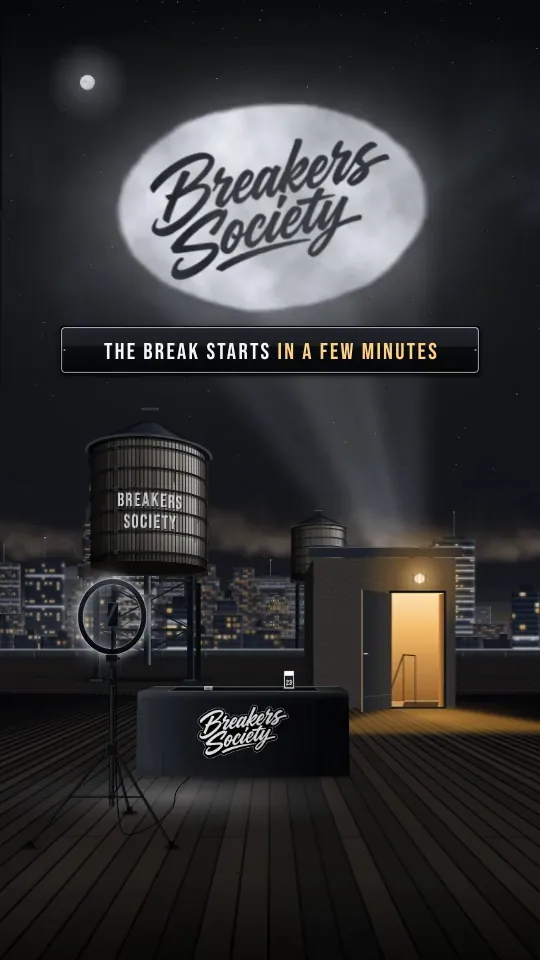
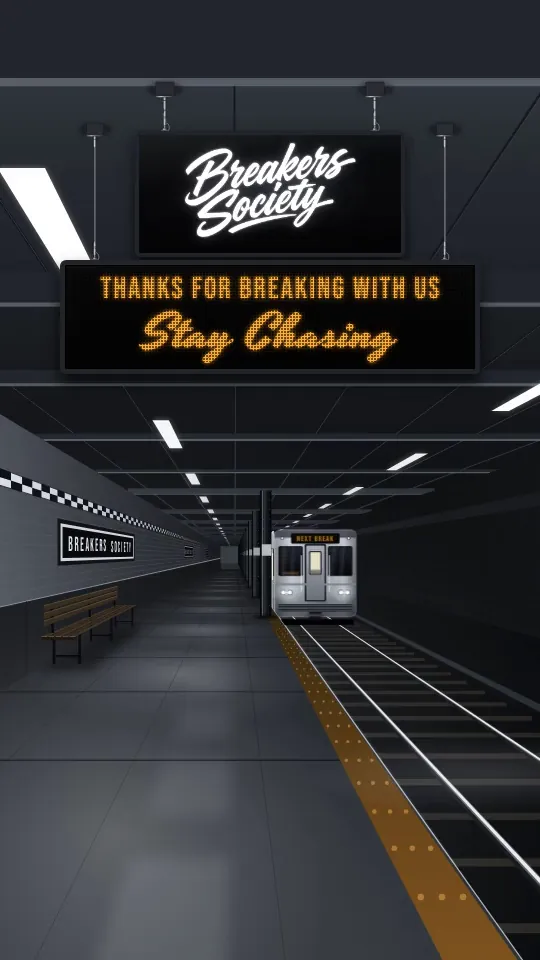
A matching set of starting soon, BRB and ending scenes for one break show, in the same city-at-night theme as its board.
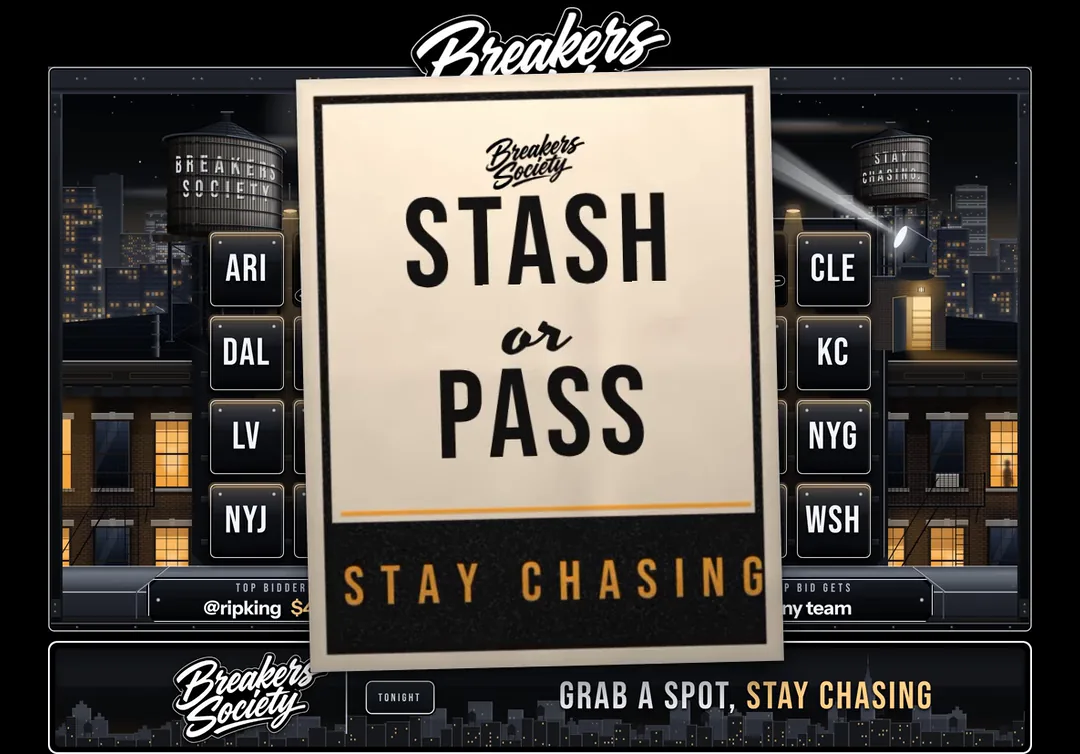
Stream scenes aren’t the same as board animations (short animations on the board itself, such as a spot selling) or break animations (clips that play over the board for a sales moment such as Stash or Pass). Those play during a break and never cover the cards. Stream scenes cover the whole screen, so they run only outside a break (break animations).
When can you show a BRB screen on Whatnot?
Only between breaks. As of November 2026, Whatnot’s Card Breaks Policy says “The full display of any Card Break must be kept onscreen from the sale of an item to the end of the Break.” That includes the product, tools and your hands, and the policy adds that this “can be done over multiple cameras.” A full-screen scene hides all of that, so:
- Starting soon comes down before the first spot of the first break goes on sale.
- BRB goes up only after a break is over, with every pack opened and every card dealt out on camera, and comes down before the next break starts selling. If you need a moment mid-break, switching to another camera that shows the cards is allowed; a full-screen graphic isn’t.
- Ending goes up after the last break is finished. The same policy rules out card breaks that span multiple shows, so every break has to finish in the show it was sold in.
How long can a stream scene stay up on Whatnot?
As of November 2026, Whatnot names no time limit for a scene. Its Community Guidelines require hosts to be “actively engaged during the entirety of the show.” They count a “blank, still, or frozen screen for an extended period of time,” or no person on screen for extended periods, as an inactive show, which Whatnot doesn’t allow. Keep scenes short and keep talking over them. A small camera window in the starting soon and BRB scenes shows viewers you’re still there.
Policy facts checked 10 November 2026: Whatnot Card Breaks Policy · Whatnot Community Guidelines · Whatnot: Using OBS with your livestream
What to put on a starting soon, BRB and ending screen
A Whatnot starting soon screen should show your shop name or logo, what’s breaking tonight (the product and the format), when the first break starts selling, and where to find the rules, which Whatnot requires in Show Notes or the item listings. A BRB screen needs “Be right back” in large type and the next break. An ending screen thanks buyers and says when you’re live next.
Starting soon
- Your shop name or logo.
- What’s breaking tonight: the product and the format.
- When the first break starts selling, or simply “starting in a few minutes”.
- Where to find the rules. Whatnot’s Card Breaks Policy requires the rules for every break to be in your Show Notes or the item listings, so point there.
- A follow prompt.
Be right back
- “Be right back” in large type, so nobody thinks the stream froze.
- What’s next: the next break and its product.
- One short message, such as shipping times or a follow prompt.
Ending
- A thank-you to buyers.
- When you’re live next.
- Your socials or where to find upcoming shows.
For all three
- Size. Make scenes 1080×1920, the vertical canvas Whatnot uses for streams from OBS (Whatnot: Using OBS).
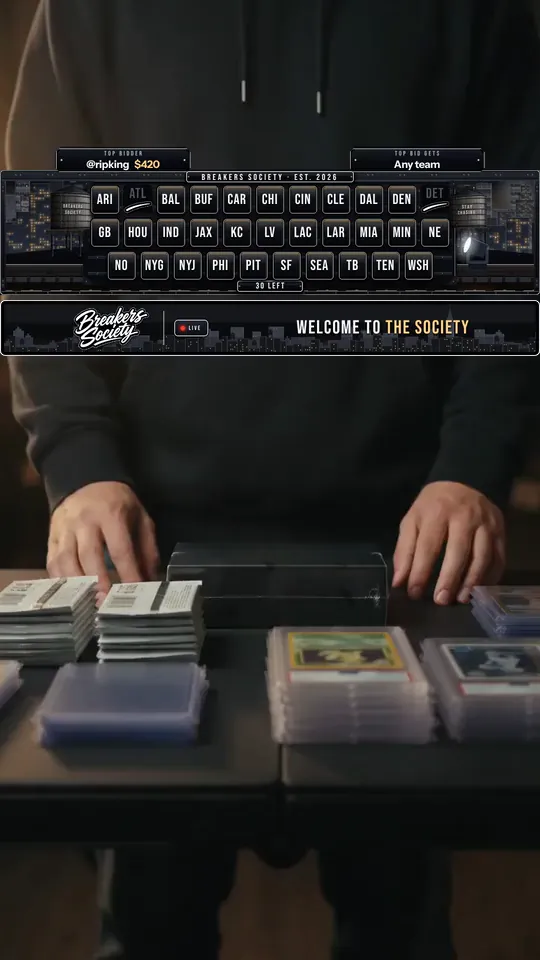
- Phone first. Large type, strong contrast, a few words. Keep text and logos away from the top and bottom of the frame, where the Whatnot app puts its header, buttons and chat, and at least 110 pixels in from each side, since the app crops about 97 pixels from each side on iPhone (Whatnot overlay safe zones).
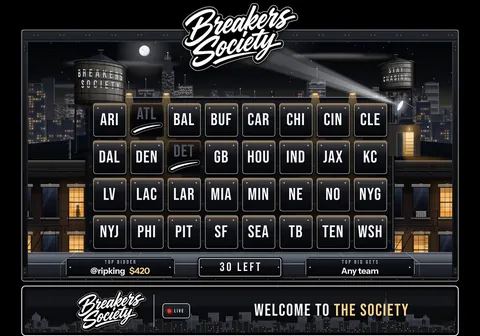
- Match your break layout. The same colors, type and theme as your board make the show look like one thing (how to brand your break show).
- Still or animated. A still image works. A short looping video looks more alive, but it doesn’t change the active show rule above.
- No team or league logos. They’re trademarks, and Whatnot’s Community Guidelines say you may not use another’s IP, such as images or video, without authorization. Use your own logo and art. This isn’t legal advice.
How to set up stream scenes in OBS for Whatnot
To add a starting soon, BRB or ending screen to a Whatnot stream in OBS, create one scene for each in the Scenes panel. Add the screen as an Image or a looping Media Source and fit it to the 1080×1920 canvas. Set your microphone as a global audio device so viewers hear you in every scene, give each scene a hotkey, and test from a second Whatnot account.
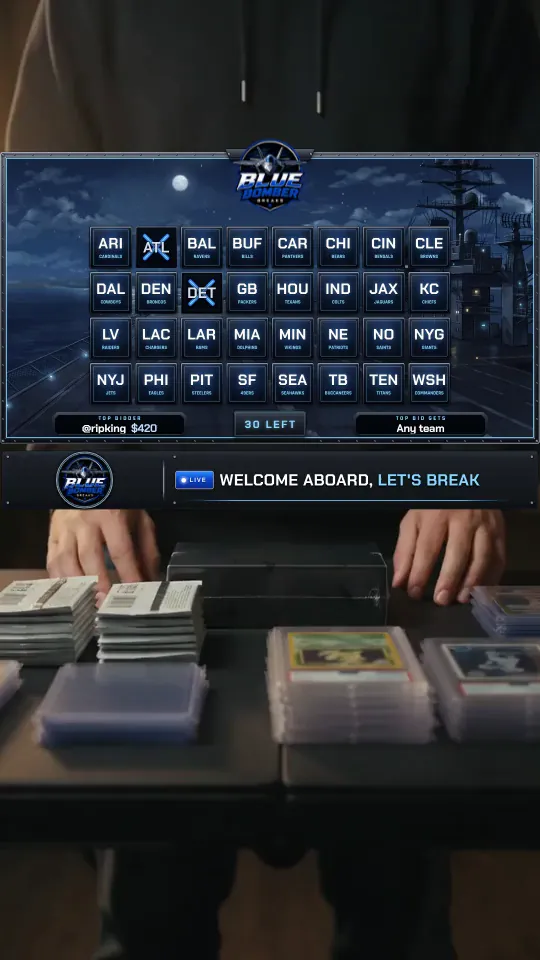
These steps assume OBS already streams to Whatnot on a 1080×1920 canvas (how to set up OBS for Whatnot).
- In the Scenes panel, click + and add a scene for each screen: Starting soon, BRB and Ending.
- In each one, add the screen: an Image source for a still, or a Media Source with Loop ticked for a video. Right-click it and choose Transform → Fit to screen.
- Set your microphone under Settings → Audio → Global Audio Devices, so viewers hear you in every scene. A mic added only inside your break scene may go silent when you switch away from it.
- To show your camera, or your mid bar if it’s a separate source, on a scene too, reuse the existing source rather than making a new copy: press + under Sources, choose the same source type and pick it from the existing sources. Changes to it then show everywhere.
- Give each scene a hotkey under Settings → Hotkeys, where every scene has a “Switch to scene” entry. Pick keys you won’t hit by accident mid-break.
- Run a test show. Whatnot says the account that’s live from OBS can’t view the show’s video in the app, and points you to a different account, so watch from a second account on a phone (Whatnot: Using OBS).
Transitions and stingers
OBS moves between scenes with a transition: a cut, a fade, or a stinger, which is a short video that plays over the switch. Going into or out of a starting soon, BRB or ending scene is the natural place for a stinger. If you switch between camera scenes during a break, use a cut or a quick fade instead: a full-screen stinger hides the cards for as long as it plays.
Where to get stream scenes for a break show
| Option | Cost | What to check |
|---|---|---|
| Make your own in Canva or a similar design tool | Free or low | Set the canvas to 1080×1920 before you start, and keep text clear of the top, the bottom and about 110 pixels at each side |
| Generic stream screen packs made for Twitch, YouTube or Kick | Varies | Many are made for horizontal 16:9 streams; Whatnot needs vertical 1080×1920 |
| Break-show templates | About $80 to $110 per item | Whether they come at 1080×1920 and match your board |
| Included with a board app | Board apps cost about $15 to $30 a month | Whether the app includes scenes, at 1080×1920, and whether you can edit them |
| Included with a custom-built board | Custom boards cost about $500 to $5,000 or more in total | Whether scenes are included, how many, and whether they’re designed to match the board |
Prices as listed in November 2026. More on what each option costs in what a break board costs.
Disclosure: BreakerStudio, which publishes this guide, builds custom break boards. As of November 2026, a BreakerStudio board is $799 once and yours to keep, with custom break animations, stream scenes, a control panel and a year of updates included. After the first year, updates are $99 a year and renew automatically until you turn them off; you keep your board either way. We’ll make you a free preview first.
Quick answers
Can I use a BRB screen during a break on Whatnot?
No. As of November 2026, Whatnot’s Card Breaks Policy requires the full display of a card break, including the product, tools and your hands, to stay onscreen from the sale of an item to the end of the break. A full-screen BRB scene hides all of that, so it belongs between breaks. Switching to another camera that shows the cards is allowed.
What size should a Whatnot starting soon screen be?
A Whatnot starting soon screen should be 1080×1920 pixels, the vertical canvas Whatnot uses for streams from OBS. Use large type. Keep text and logos away from the top and bottom of the frame, where the Whatnot app shows its header, buttons and chat, and at least 110 pixels in from each side, since the app crops about 97 pixels from each side on iPhone (Whatnot overlay safe zones).
How long can a starting soon screen stay up on Whatnot?
As of November 2026, Whatnot names no time limit for a starting soon screen. Its Community Guidelines require hosts to be actively engaged for the whole show, and treat a blank, still or frozen screen, or no one on screen, for an extended period as an inactive show. Keep a starting soon screen short, talk over it, and consider a small camera window.
Does the mid bar stay up during stream scenes?
The mid bar can stay up during stream scenes if it’s its own source in OBS. Add the existing source to each stream scene (press + under Sources, choose its type and pick it from the existing sources), and it keeps showing the same messages as in your break scene, such as rules, shipping or a follow prompt. If your mid bar is part of the board graphic, adding it brings the whole board, so put the message on the scene instead.
Can I use a stinger transition on Whatnot?
Yes, between breaks. Whatnot’s Card Breaks Policy doesn’t mention transitions, and a stinger, a short video OBS plays over a scene switch, suits going into or out of a starting soon, BRB or ending scene. During a break, switch camera scenes with a cut or quick fade, because Whatnot requires the cards to stay onscreen until the break ends.
Where can I get starting soon, BRB and ending screens for Whatnot?
Whatnot starting soon, BRB and ending screens can be made free in Canva or a similar tool at 1080×1920. Generic stream screen packs made for Twitch or YouTube also work if they come in vertical 1080×1920; many are horizontal. Break-show templates cost about $80 to $110 per item, and board apps or custom-built boards may include matching scenes. Prices as listed in November 2026.
 What are break animations?
 How to set up OBS for Whatnot
 How to brand your break show
 Where does the Whatnot app cover your stream?