How to use Whatnot’s Breaks feature with a break board.
Whatnot’s Breaks feature lets sellers create a card break’s spots, sell them by auction or Buy It Now, assign teams with its randomizer or by hand, and export buyers to a CSV from the Break Manager on a computer. Buyers see the spots in the Whatnot app. A break board shows the same break on your video, so run the break in Whatnot and show each result on the board.
By Michael at BreakerStudio · Updated
What is Whatnot’s Break Manager?
Whatnot’s Breaks feature is its built-in tool for selling and assigning the spots in a card break. When you run a break from a computer, its controls sit in the Break Manager on the left side of the screen; that is Whatnot’s own name for it. As of November 2026, it covers:
- Spots. Choose a preset list such as NBA teams, batch-generate spots, or paste up to 75 custom spots per break from Google Sheets or Excel, which suits formats like random player breaks.
- Sale types. Pick Your Team breaks sell by auction or Buy It Now, with offers on spots if you turn them on when you create the break. Random breaks are auctions only.
- The spot list in the app. Pin the break, or a single spot, so buyers in your show can see prices and what’s available. Buyers tap “See Spots” or the pinned listing to open the spot list.
- Assigning teams. In a random break, Auto-Randomize assigns a team as each buyer wins an auction. With it off, you tap “Randomize”, or use “Assign Team” if you use a physical randomizer like a deck of cards.
- Advanced formats. Stash or Pass, Pick 2 Choose 1 and trades, run with “Randomize Again”, “Clear Team” and “Assign Team”.
- Editing a break. While the break is filling, you can add, remove or rename spots, pin the break or single spots, download a CSV of buyer and spot names, or delete the break. In a random break, “Clear Team” removes a buyer’s team assignment at any point.
- Shipping. Spot names print on packing slips, and a CSV of buyer names and spot assignments exports from the Break Manager or Seller Hub. Seller Notes on a spot are visible only to you and appear on the CSV, packing slips and orders page.
Whatnot says the break creation and management tools can currently only be used from a computer. You can still stream video from your phone, with a computer beside you to run the break.
How to set up a break on Whatnot
- Create a show on a computer. Pick the right category (for example Basketball Cards) and set Primary Selling Format to Breaks. In the show, tap “add”, then “create a break”, and choose Pick Your Team (auction or Buy It Now) or random (auctions only).
- Add the spots. Pick a preset list, batch-generate them, or paste up to 75 custom spots from a spreadsheet, then set the options (offers on spots for Pick Your Team, Auto-Randomize for random) and tap “Create Break”.
- Share the rules. Whatnot’s Card Breaks Policy requires the rules for any break to be in your Show Notes or the item listings, and every buyer must receive a card.
- Pin the break with the pin icon at the top of the Break Manager (Whatnot recommends this for Pick Your Team breaks), so buyers can see prices and open spots.
- Sell the spots, then finalize any trades and tap “Start Breaking”, which notifies every buyer that the break is beginning.
- Open the product, then tap “Finish Breaking” to mark the break complete in your store.
Which formats to sell, and how they differ, is in Whatnot break formats.
Does Whatnot show the break on your video?
Not as a graphic on your stream. As of November 2026, Whatnot’s Breaks feature help page describes the break inside the app, through the pinned listing, “See Spots” and the Break Manager, and describes nothing drawn on your video. In your show, a pinned break shows buyers its prices and open spots, and “See Spots” opens the full list; what appears in the video itself is up to you.
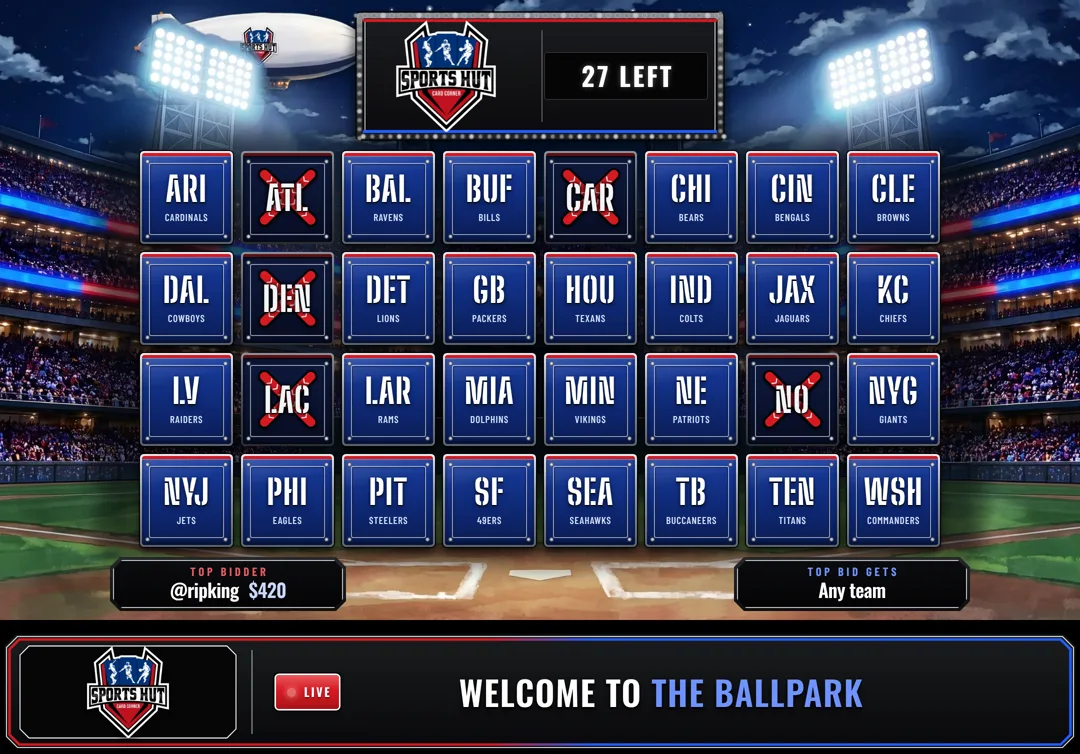
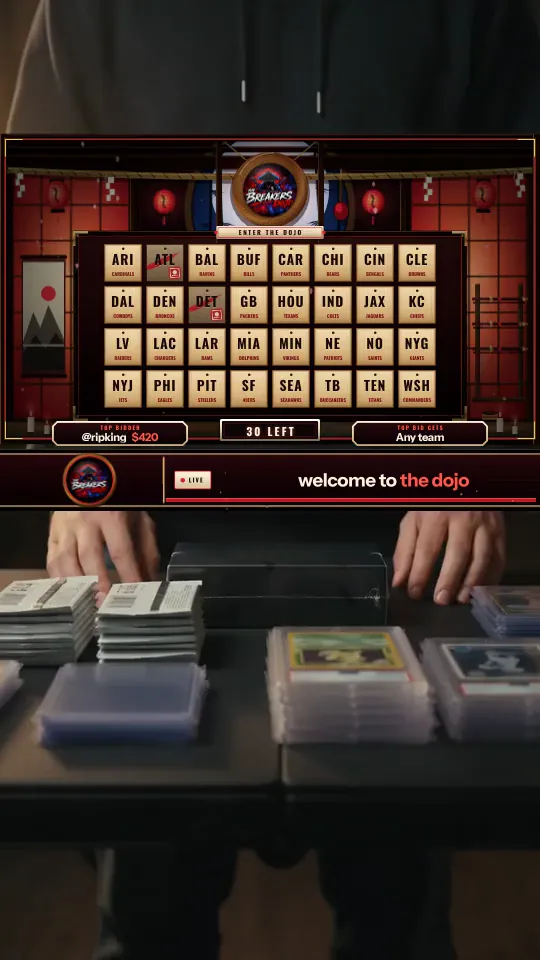
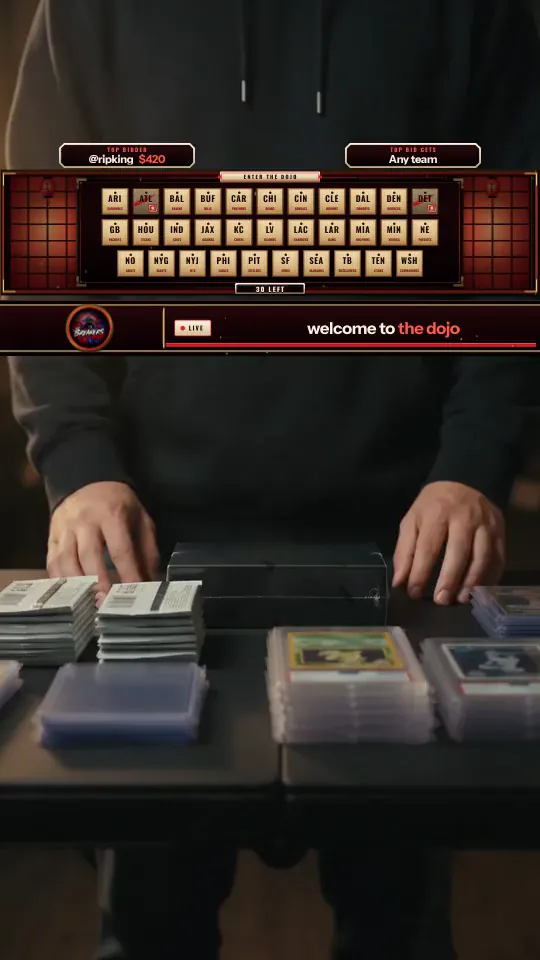
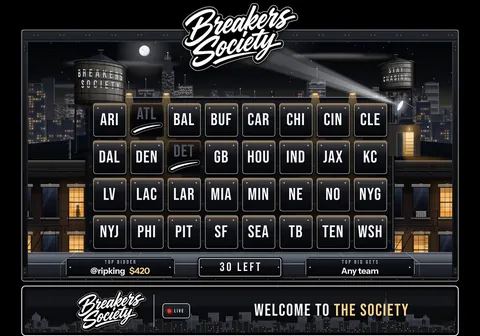
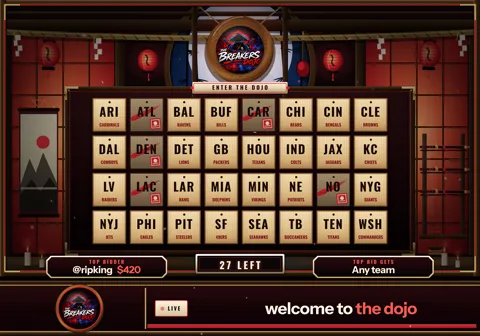
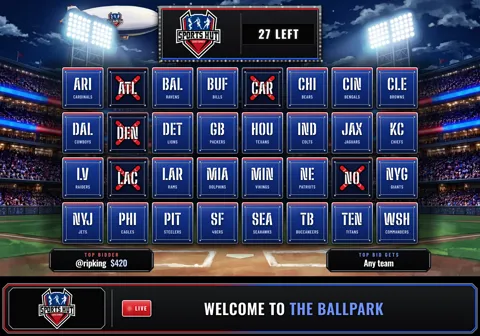
A break board puts the same break on the video: every spot, who bought it and how many are left (what is a break board). Laying one over your camera needs streaming software such as OBS on a computer (how to set up OBS for Whatnot). Many breakers run both: Whatnot sells and assigns the spots, and the board shows the result to everyone watching.
How to run Whatnot’s Breaks feature and a break board together
| Job | Whatnot’s Break Manager | Your break board |
|---|---|---|
| The spots | Creates and sells them | Shows the same list on your video, in the same order |
| Who bought what | Records the buyer of each spot | Shows the buyer’s name on the spot |
| Random teams | Assigns them: Auto-Randomize, “Randomize”, or “Assign Team” after a physical randomizer | Shows the result; never picks it |
| Spots left | In the spot list buyers open | A count on screen |
| Shipping | CSV export, packing slips, Seller Notes | Nothing; it’s a display |
Before the show
Create the break in the Break Manager, then load the same spot list on your board, in the same order and with the same names or team codes, so a buyer can match the two at a glance.
In a Pick Your Team break
- A buyer wins a team in Whatnot, by auction or Buy It Now.
- Mark that team on the board with the buyer’s name.
- When the last team sells, the break is full on both.
In a random team break
- Sell the spots by auction. The board lists the buyers in the order they bought and shows how many spots are left.
- Whatnot assigns the teams: with Auto-Randomize on, as each buyer wins; with it off, when you tap “Randomize”. If you draw with a physical randomizer like a deck of cards, enter each result with “Assign Team”.
- Copy each result onto the board. With 30 or more teams and chat waiting, copying results by hand can hold up a random break, so know how your board handles it before you go live.
The board shows results; it never decides them. As of November 2026, Whatnot’s Card Breaks Policy bans randomizer wheels, including “digital wheels run through third-party websites and streaming software”, and machines such as a raffle drum (Whatnot randomizer wheel rules).
With a moderator
Some boards’ control panels run on a phone or second screen, so a second person can keep the board in step while you work the Break Manager and open the product.
How to run Stash or Pass, Pick 2 Choose 1 and trades on Whatnot
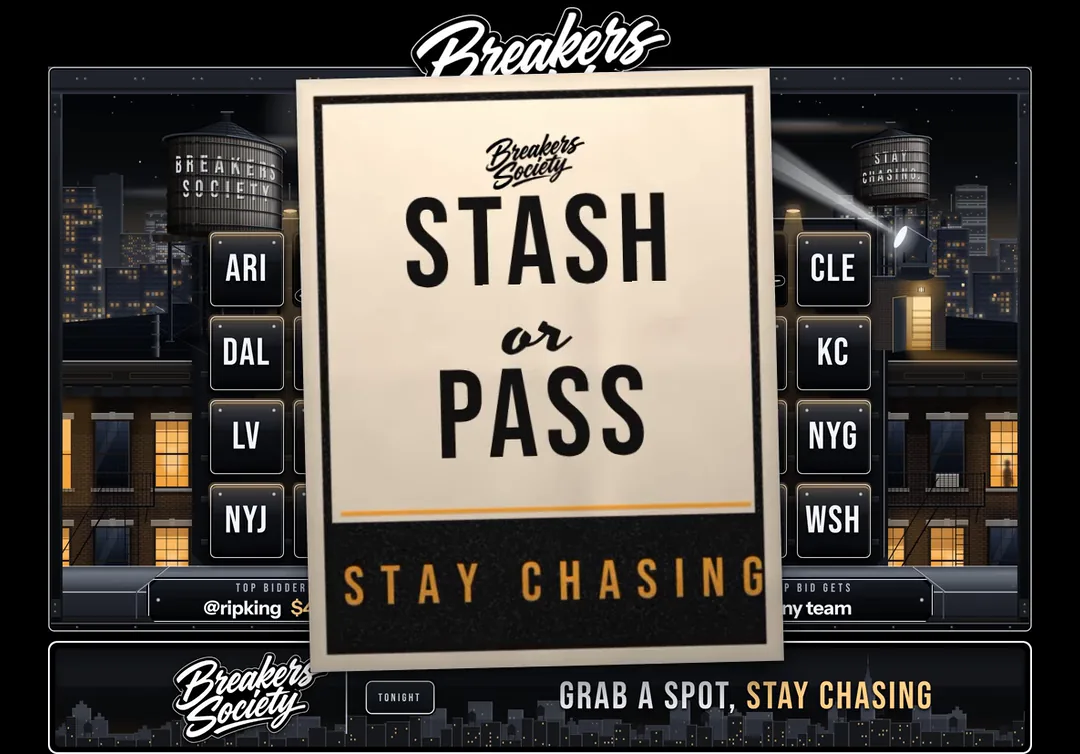
Whatnot lists Stash or Pass and Pick 2 Choose 1 (also called See 2 Pick 1) as break formats; on stream they’re played as break animations. As of November 2026, Whatnot’s help page runs them like this:
- Stash or Pass. Randomize the buyer’s first team. If they stash, you’re done. If they pass, find their spot in the Break Manager and click “Randomize Again” for a new team, and again if it lands on the same team.
- Pick 2 Choose 1 (or Pick 3 Choose 2). Randomize the first team, then click “Randomize Again” for a second. If the buyer keeps the second team, you’re done. To keep the first, click “Clear Team” on their spot, then “Assign Team” and choose it.
- Trades. Click “Clear Team” on both buyers’ spots, then “Assign Team” to give each spot its new team. Trades have to be finalized before you tap “Start Breaking”.
The team always comes from Whatnot’s randomizer, a physical randomizer you enter with “Assign Team”, or the buyer’s own stash, pass, pick or trade; an animation only shows it. It plays over the board, never over the cards: Whatnot requires the full display of a break to stay onscreen “from the sale of an item to the end of the Break”. After a pass, a cleared team or a trade, update the board as well, so it matches the Break Manager.
More in break animations and Whatnot break formats.
Check your break board against Whatnot’s CSV before you ship
The board is a display. The assignments in the Break Manager are what print on your packing slips and go into the CSV, so check the two match before anything ships:
- Export the CSV of buyer names and spot assignments from the Break Manager or Seller Hub.
- Compare it with the board, spot by spot, starting with the spots that changed mid-break: passes, cleared teams and trades.
- If they disagree, work out which is right and fix the wrong one before you pack.
- Put anything the packer needs to know in Seller Notes on the spot. They’re visible only to you and appear on the CSV, packing slips and orders page.
Policy facts checked 10 November 2026: Whatnot Breaks feature for sellers · Whatnot Card Breaks Policy
Disclosure: BreakerStudio, which publishes this guide, builds custom break boards. As of November 2026, a BreakerStudio board is $799 once and yours to keep, with custom break animations, stream scenes, a control panel and a year of updates included. After the first year, updates are $99 a year and renew automatically until you turn them off; you keep your board either way. We’ll make you a free preview first.
Quick answers
What is the Break Manager on Whatnot?
The Break Manager is where a Whatnot seller runs a card break from a computer. It sits on the left side of the screen and holds the break’s spots, buyers and team assignments, with “Randomize”, “Randomize Again”, “Clear Team” and “Assign Team”, pinning and the CSV export. It is part of Whatnot’s Breaks feature.
How do I set up a break on Whatnot?
To set up a break on Whatnot, use a computer. Create a show in the right category, set Primary Selling Format to Breaks, then tap “add” and “create a break”. Choose Pick Your Team (auction or Buy It Now) or random (auctions only), add preset, batch-generated or up to 75 pasted custom spots, and tap “Create Break”. Put the rules in Show Notes or listings.
Can I run breaks from the Whatnot phone app?
No. As of November 2026, Whatnot says its break creation and management tools can only be used from a computer. You can still stream video from the Whatnot phone app, but you need a computer beside you to run the break in the Break Manager.
How many spots can a Whatnot break have?
Whatnot’s help page gives one spot limit: up to 75 custom spots per break, pasted from Google Sheets or Excel, as of November 2026. Whatnot also offers preset spot lists, such as NBA teams, and batch-generated spots, and the page’s feature summary mentions “a Break with hundreds of spots in just seconds” without stating an overall limit.
How do you run Stash or Pass in Whatnot’s Break Manager?
To run Stash or Pass in Whatnot’s Break Manager, randomize the buyer’s first team. If they stash, you’re done. If they pass, find their spot and click “Randomize Again” for a new team, and again if it lands on the same team, according to Whatnot’s help page as of November 2026. Update your break board after each pass so it matches.
Does Whatnot show the break on my video?
No, not on your video itself. As of November 2026, Whatnot’s Breaks feature shows the break inside the Whatnot app: a pinned break shows buyers prices and open spots in your show, and “See Spots” opens the full list. Its help page describes nothing drawn on your stream, so sellers who want the spots on the video add a break board in streaming software such as OBS.
 What is a break board?
 Whatnot break formats, explained
 Can you use a randomizer wheel on Whatnot?
 What are break animations?