What are break animations?
Break animations are short animated moments a card breaker plays over the break board during a live break on Whatnot, such as Stash or Pass, See 2 Pick 1 or Pick Your Team. They mark a sales moment or show a result already decided by the buyer, Whatnot’s randomizer or a deck of cards. They never pick the team, and they never cover the cards.
By Michael at BreakerStudio · Updated
What is a break animation?
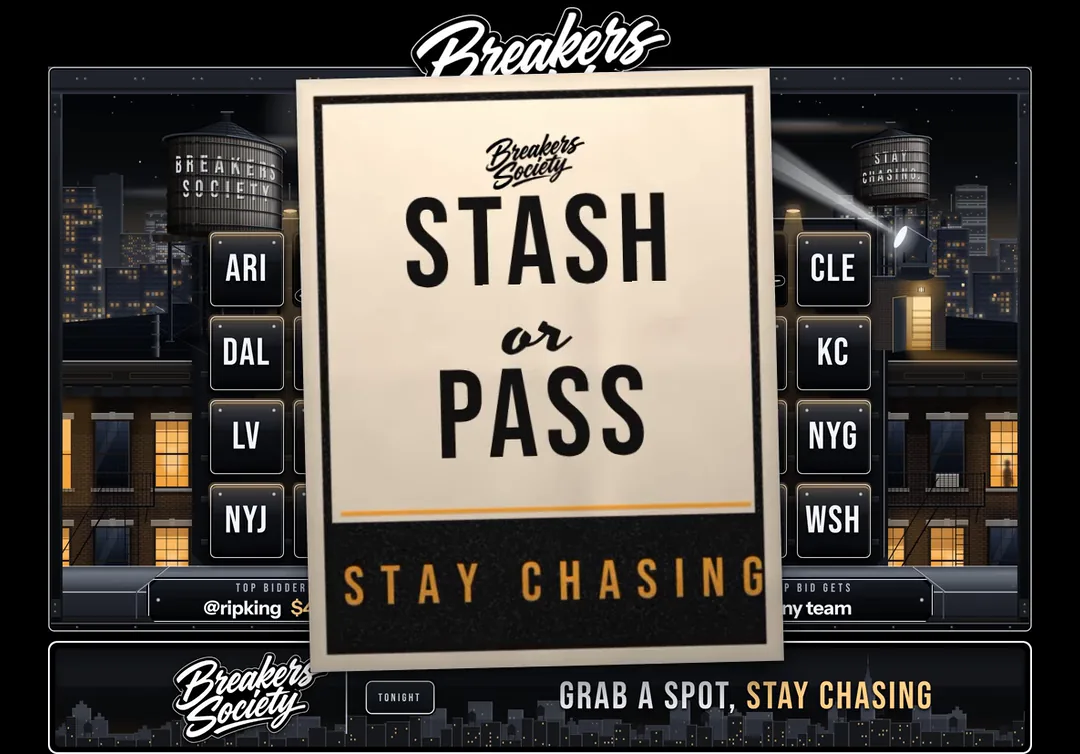
A break animation is a short animated moment a card breaker plays during a live break to mark a sales moment. Examples are a Stash or Pass decision, a See 2 Pick 1 reveal, a Pick Your Team spot and a callout that bidding opens at $1. It plays over the break board, shows what was decided, then gives the space back to the board.
Whatnot lists Stash or Pass and Pick 2 Choose 1 as break formats in its Breaks feature; on stream they’re played as break animations. The format is the rule a spot is sold under; the animation is how viewers see it happen. How each format works is in Whatnot break formats.
Break animations, board animations and stream scenes
| Kind | What it is | When it plays | Where on screen |
|---|---|---|---|
| Break animation | A short moment for a sale inside a break: Stash or Pass, See 2 Pick 1, Pick Your Team, a callout that bidding opens at $1 | During a break, when the seller plays it | Over the board, never over the cards or hands |
| Board animation | A short effect on the board itself: a spot selling, one spot left, the break filling up, a big hit | When the board changes | On the board |
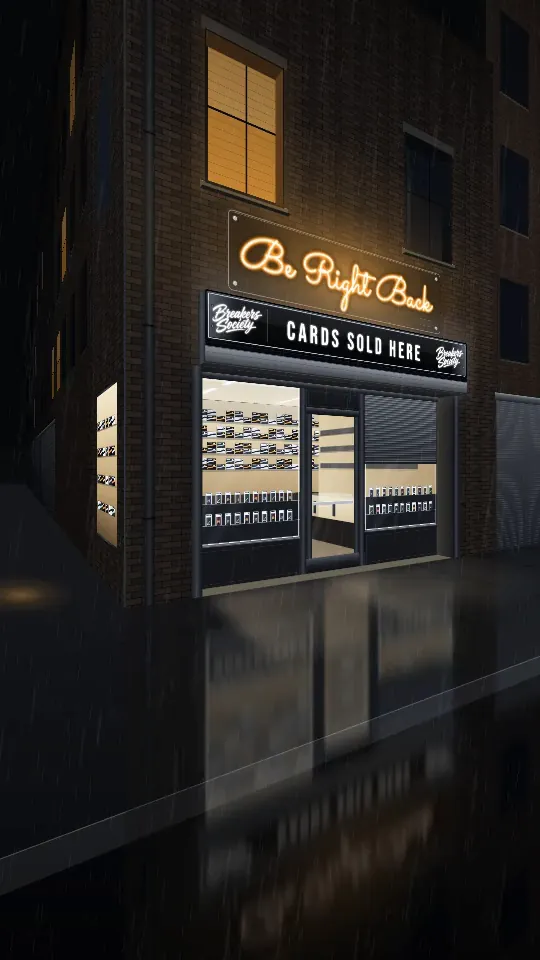
| Stream scene | A full-screen layout: starting soon, be right back, ending | Before the show, between breaks and after | The whole screen, never during a break |
Stream scenes have their own guide: stream scenes for breakers.
What Stash or Pass, See 2 Pick 1 and Pick Your Team animations show
Each animation below goes with a break format, defined here in one line; the full rules and Whatnot steps for each are in Whatnot break formats.
Stash or Pass animation
Stash or Pass is a format where a buyer keeps the team they’re given (stash) or swaps it for a new random one (pass). The animation shows the first team, the buyer’s decision and the team they end up with, then the board marks it sold. Variants such as Double Stash or Pass show more than one decision; the seller’s posted rules define how many.
See 2 Pick 1 animation (and See 3 Pick 1, See 3 Pick 2)
See 2 Pick 1, often written S2P1, is the animation for Whatnot’s Pick 2 Choose 1 format, where a buyer is shown two random teams and keeps one. The animation reveals both teams and marks the one the buyer keeps. See 3 Pick 1 and See 3 Pick 2 animations do the same with three teams.
Pick Your Team animation
A Pick Your Team animation marks a spot whose winner chooses any open team, such as a “top bid gets any team” spot, and shows the team they chose. It isn’t the same as a Pick Your Team (PYT) break, the format where every buyer chooses a team as they buy it. Saying what the winning bid buys describes the spot itself; it isn’t a prize.
A $1 start callout
Not every break animation shows a result. Some announce a price: “Live at $1” is an animation name some boards use to announce a $1 start, meaning the next spot or item opens with a $1 starting bid. It plays and the board comes straight back. Like any callout, it shouldn’t promise anything the listing doesn’t sell.
Who decides the result a break animation shows?
A break animation never decides a result; it shows one that was already decided. On Whatnot, that decision comes from one of three places:
- Whatnot’s randomizer. In a random team break, Whatnot assigns teams automatically as each spot sells when Auto-Randomize is on, or when the seller taps “Randomize”. “Randomize Again” gives a new team after a pass or for a second look (Whatnot: Breaks feature).
- The buyer. In Stash or Pass, Pick 2 Choose 1 and Pick Your Team spots, the buyer makes the choice, inside the rules the seller posted.
- A physical randomizer such as a deck of cards. Whatnot’s Breaks feature lets sellers “Assign Team” by hand when they use “a physical randomizer like a deck of cards.” Machines and wheels are out: see the policy below.
The seller then plays the animation with that result, and the board updates to match. As of November 2026, Whatnot’s Card Breaks Policy says: “No mechanical or wheel-based randomization: Randomization cannot be done through a physical machine. In other words, distributing items based on results from items like a vending, gumball, pinball machine, or a raffle drum is not permitted. Additionally, sellers may not use randomizer wheels. This includes physical wheels, and digital wheels run through third-party websites and streaming software. While this behavior is most common in breaks and similar formats, this policy applies to any use of a wheel.”
An animation that chooses the team by itself is doing the randomizing, which isn’t a method Whatnot documents, and a wheel-shaped one is banned outright. Use animations that only display a result (Whatnot randomizer wheel rules). The policy’s own advice for anything in doubt: “If you are unsure whether your show complies with our Card Break policies, do not proceed with the format.”
The rules of the format, such as how many passes a buyer gets, have to be written down where buyers can read them: “The rules for any Card Break run must be in Show Notes or in the item listings for the Card Break.”
Are break animations allowed on Whatnot?
Yes. As of November 2026, Whatnot’s policies don’t ban break animations, but they limit what an animation can cover, decide and promise.
- Keep the break on screen. The Card Breaks Policy says “The full display of any Card Break must be kept onscreen from the sale of an item to the end of the Break.” That includes “sealed and unsealed product, tools, or other essential elements of a Card Break, such as hands while dealing with cards, or opening of product.” A break animation plays over the board, not over the cards, the product or your hands, however short it is. Full-screen graphics belong to stream scenes, before or after a break.
- Show results, never decide them. Whatnot’s randomizer, the buyer or a physical randomizer such as a deck of cards decides; the animation displays it (see above).
- Never turn a moment into a prize. The Card Breaks Policy says “Sellers cannot include a prize in their Breaks” and “Breaks may not include paid bounties, guarantees, or bonus items tied to specific outcomes or assignments.” An animation can celebrate a stash, a pick or a big hit; it can’t announce a bonus for one. Whatnot’s Gambling and Purchase-Based Prize Policy gives “Offering an extra box of cards if someone gets a holographic card” as an example of what isn’t allowed.
- Use only images you’re allowed to use. Team and league logos are trademarks, and Whatnot’s Community Guidelines say sellers may not use another’s intellectual property without authorization. Short team codes (NYG, KC) in generic colors are the lower-risk choice. This isn’t legal advice.
Avoid wheel-shaped graphics, even ones that only show a result already decided: the Card Breaks Policy says “this policy applies to any use of a wheel.” The policy doesn’t name slot reels or dice, but an animation styled that way can look like a randomizer to viewers and moderators, so it’s worth avoiding that look too.
On eBay Live and TikTok Shop
The eBay Live policy bans raffles and random drawings, requires products to stay visible while they’re opened, and limits breaks to sellers eBay has approved. TikTok Shop banned lucky spins, wheels and draws in a June 2026 policy update, according to news reports (PPC Land, June 2026), and since its 31 August 2026 update allows random team breaks only through its own Surprise Set feature (TikTok Shop Collectibles Requirements; SCCG, September 2026). More in break boards on eBay Live and other platforms.
Policy facts checked 10 November 2026: Whatnot Card Breaks Policy · Whatnot Breaks feature · Whatnot Gambling and Purchase-Based Prize Policy · Whatnot Community Guidelines · Whatnot: Using OBS · eBay Live policy
How to play a break animation in OBS
Break animations come either as video files, which any streaming software that plays video can run, or built into a browser-source board that plays them itself. In OBS, there are two common ways:
- A media source over the board. Add the animation as a Media Source in your break scene, above the board and sized to it. Turn Loop off, and leave “Restart playback when source becomes active” and “Show nothing when playback ends” on, which are OBS’s defaults: the clip starts from the beginning each time the source is shown and disappears when it ends (OBS: Media Sources). Keep the source hidden until the moment, then show it with a hotkey set in OBS’s Hotkeys settings or a stream-controller button. Showing a source that’s already visible does nothing, so hide it again after each play, or replay it with the source’s own Restart hotkey. If it’s left visible, it also plays every time you switch to the break scene.
- A control panel button. Some break boards play their animations from the board’s own control panel, with the team and buyer filled in from what you entered.
A stinger transition is a different tool: it plays a video while OBS switches scenes and usually covers the whole frame. That suits moving between stream scenes before or after a break, not a moment inside one.
Which file format?
A video with a transparent background lets the animation cover the board and nothing else. OBS’s Media Source plays .webm and .mov files (OBS: Media Sources). For transparency, WebM with VP9 alpha is a common choice; MOV with an alpha channel, such as ProRes 4444, also works, but the files are much larger. An ordinary MP4 has no transparency, so it works only when it’s made at the board’s exact size and position and covers that area in full. Either way, design it to sit inside Whatnot’s vertical 1080×1920 canvas (Whatnot: Using OBS) and keep it clear of the app’s buttons (Whatnot’s safe zones).
Before you go live
- Play every animation in OBS’s preview, twice, and check it starts from the beginning each time.
- Check the result it shows matches the Whatnot Break Manager.
- Check the cards, the product and your hands stay fully visible while it plays.
- Have a friend or moderator watch a test on a phone: Whatnot doesn’t let you watch your own show from the seller account.
- If the animation has sound, check its level against your microphone.
The full OBS setup is in how to set up OBS for Whatnot.
What makes a good break animation?
- Readable on a phone. Many viewers watch on a phone, so team codes and usernames have to read at that size.
- An unmistakable result. The team and the buyer’s name on screen together, long enough to read, then the board shows the same result.
- Short, then back to the board. The examples on this page run about 8 to 15 seconds, including the board coming back.
- Same moment, same animation. When Stash or Pass always looks the same, viewers know what’s happening without being told.
- Part of the show. The same colors, type and setting as the board, so it reads as part of the stream rather than a sticker on top of it.
- Nothing that looks like chance. No wheels, spinners or slot reels, for the reason above.
Disclosure: BreakerStudio, which publishes this guide, builds custom break boards, and the example clips on this page come from BreakerStudio boards. As of November 2026, a BreakerStudio board is $799 once and yours to keep, with custom break animations, stream scenes, a control panel and a year of updates included. After the first year, updates are $99 a year and renew automatically until you turn them off; you keep your board either way. We’ll make you a free preview first.
Quick answers
What does a Stash or Pass animation show?
A Stash or Pass animation shows a Whatnot break buyer’s team, their choice to keep it (stash) or swap it for a new random team (pass), and the team they end up with. Whatnot’s randomizer and the buyer decide each step; the animation only displays it. How the format works: Whatnot break formats.
What does a See 2 Pick 1 animation show?
A See 2 Pick 1 animation reveals the two random teams a Whatnot break buyer is offered and marks the one they keep. Whatnot calls the format Pick 2 Choose 1. See 3 Pick 1 and See 3 Pick 2 animations work the same way with three teams (Whatnot break formats).
Are break animations allowed on Whatnot?
Yes. As of November 2026, break animations are allowed on Whatnot as long as they only show results, never cover the product or the seller’s hands during a break, and never announce a prize. Whatnot’s Card Breaks Policy bans randomizer wheels, including digital wheels run through streaming software, and an animation that picks the team itself isn’t a method Whatnot documents, so use one that only shows the result (Whatnot randomizer wheel rules).
How do you play a break animation in OBS?
To play a break animation in OBS for a Whatnot stream, add the video as a Media Source above the board in your break scene, with Loop off. Keep the source hidden until the moment, then show it with a hotkey: it plays from the start and shows nothing when it ends. Hide it again before the next play, or use the source’s Restart hotkey.
What file format should a break animation be?
A break animation played as a video in OBS is commonly a WebM video with a transparent background (VP9 with an alpha channel), or a MOV with an alpha channel, which is larger. An MP4 has no transparency, so it works only when it’s made at the board’s exact size and position, covering the board and nothing else.
 Whatnot break formats, explained
 Can you use a randomizer wheel on Whatnot?
 Stream scenes for Whatnot card breaks